If you play on Pioneer CDJs, you already know the drill: prepare tracks in Rekordbox, export to USB, plug in at the club. What trips up most DJs is not the export itself but everything around it. Format the drive wrong and the CDJ will not read it. Skip analysis and your waveforms look flat. Export a 128 GB playlist in one go and Rekordbox may stall at 40 percent for an hour.
This guide covers the full Rekordbox USB export workflow for 2026: which file system to pick, how to format on Mac and Windows, the exact Sync Manager steps, what hot cue and memory point data actually carries over to a CDJ-3000 or CDJ-2000NXS2, why exports crawl and how to speed them up, and a troubleshooting matrix for the nine problems that come up most on the Pioneer DJ forum and r/Rekordbox.
One thing to get right before you ever click Export: your tracks need BPM, key, energy, and ID3 tags written correctly before Rekordbox analyzes them. Rekordbox reads existing ID3 tags and uses them as a starting point for its own analysis. If your BPM is already snapped to an integer and your key is already in Camelot notation, Rekordbox has less work to do and your CDJ library is more consistent across gigs. GreenGo handles that analysis step in about 15 seconds per track, batch-style, so by the time you open Rekordbox your library is already prepped.
USB Format Guide: FAT32 vs exFAT vs HFS+
The file system on your USB drive decides two things: whether the CDJ can read it at all, and how fast Rekordbox can write to it. Get this wrong and nothing else in this guide matters.
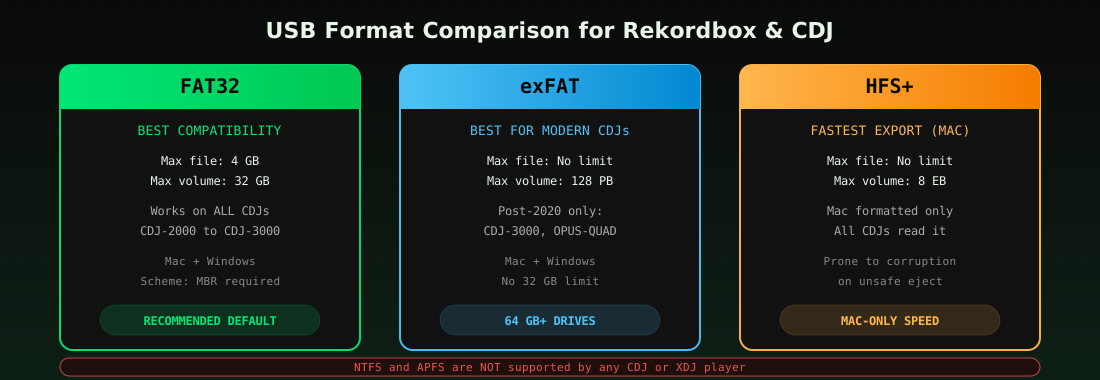
There are three formats that matter for DJing in 2026: FAT32, exFAT, and HFS+ (Mac OS Extended, Journaled). NTFS and APFS are not supported by any Pioneer CDJ or XDJ player. Here is how they compare.
| Format | Max file size | Max volume | CDJ support | Best for |
|---|---|---|---|---|
| FAT32 | 4 GB | 32 GB (officially) | All CDJs and XDJs, every generation | Maximum compatibility, older CDJ-2000 / XDJ-RX gear |
| exFAT | No practical limit | 128 PB | CDJ-3000, CDJ-3000X, CDJ-1500X, OPUS-QUAD, OMNIS-DUO, XDJ-XZ, XDJ-RX3 (post-2020 hardware only) | Large libraries on modern players, 64 GB+ drives |
| HFS+ (Mac OS Extended, Journaled) | No practical limit | 8 EB | All CDJs and XDJs (Mac-formatted only) | Mac-only DJs who want faster export speed |
| NTFS | — | — | Not supported | Do not use |
| APFS | — | — | Not supported | Do not use |
The short version: if you play on older CDJ-2000NXS2 or XDJ-RX2 hardware, format to FAT32. If you only play on CDJ-3000 or newer, exFAT is fine and removes the 32 GB cap. If you are Mac-only and never hand your USB to a Windows DJ, HFS+ gives the fastest export speed but is prone to corruption if the drive is ejected unsafely.
The 32 GB FAT32 limit is a Microsoft convention, not a technical one. Tools like guiformat can format larger drives to FAT32, but Pioneer does not officially support FAT32 above 32 GB and DJs on the Pioneer forum report inconsistent behavior on oversized FAT32 volumes. If you need more than 32 GB and your gear supports exFAT, use exFAT.
How to Format Your USB on Mac and Windows
Mac (Disk Utility)
- Close Rekordbox. Insert your USB drive.
- Open Disk Utility (Command+Space, type "disk", press Enter).
- Select the drive in the left sidebar, not the partition underneath. This matters: if you select the partition you will miss the Scheme option later.
- Click Erase at the top.
- Name the drive (e.g. "DJ-USB-1").
- Format: choose MS-DOS (FAT) for FAT32, or ExFAT for exFAT.
- Scheme: Master Boot Record. This is critical for CDJ compatibility. GUID Partition Map will cause some older CDJs to not mount the drive.
- Click Erase, wait a few seconds, click Done.
Windows (guiformat for drives over 32 GB)
Windows built-in formatter cannot format drives larger than 32 GB to FAT32. For larger drives, use guiformat (free):
- Close Rekordbox and all Explorer windows (Explorer locks the drive and blocks formatting).
- Insert your USB drive.
- Open guiformat. Select your USB drive letter. Never select C:.
- Allocation size: 4096 bytes.
- Enter a volume label.
- Click Start, then OK.
- Wait a few seconds, click Close.
For drives 32 GB or smaller, the built-in Windows formatter works fine: right-click the drive in Explorer, select Format, choose FAT32, and Start.
Rekordbox Export Mode: Step-by-Step
Once your USB is formatted and your tracks are imported and analyzed, the export itself is straightforward. The key is using Sync Manager, not dragging files in Finder or Explorer.
- Switch to Export mode. Click the mode selector at the top left of Rekordbox and choose EXPORT.
- Open Sync Manager. Click the Sync Manager button in the bottom left corner.
- Check "Synchronise Playlists With a Device" if this is your first export to this USB.
- Select your playlists. Check the box next to each playlist you want on the USB. You can select individual playlists or an entire playlist folder.
- Click the right-pointing arrow to sync. Rekordbox copies the audio files, analysis data, beatgrids, hot cues, memory points, and waveform data to the USB in the correct folder structure.
- Eject safely. Right-click the USB in the device tree and select Eject. Never yank the drive out while Rekordbox is writing. HFS+ and exFAT are especially prone to corruption on unsafe eject.
Do not drag files onto the USB in Finder or Windows Explorer. Rekordbox needs to write its own folder structure (PIONEER folder, contents folder, analysis files). Manually copied files will not show up on the CDJ with waveforms, cues, or beatgrids.
If you played a gig and saved new hot cues or memory points on the CDJ itself, plug the USB back in, open Sync Manager, and click the left-pointing arrow first. This syncs performance data from the USB back into your main Rekordbox collection so you do not lose cues you set live.
Hot Cues, Memory Points, and What Carries to CDJ
Not everything you set in Rekordbox shows up on a CDJ. Here is what actually transfers:
| Feature | Transfers to CDJ? | Notes |
|---|---|---|
| Hot cues (A-H) | Yes | Colors carry over on CDJ-3000 and CDJ-2000NXS2. Older CDJ-2000 shows cues but not custom colors. |
| Memory points | Yes | Appear as small white triangles on the waveform. |
| Loops | Yes | Saved loops appear as green sections on the CDJ waveform. |
| Beatgrid | Yes | Used for sync, quantize, and beat jump on the CDJ. |
| Waveform (RGB or 3-band) | Yes | Rekordbox writes the waveform data to the USB. CDJ renders it. |
| BPM | Yes | Reads from Rekordbox analysis. If your ID3 tag BPM differs, Rekordbox uses its own analysis. |
| Key (Camelot) | Yes | Displayed in the track browser on CDJ-3000. Requires key analysis enabled in Rekordbox settings. |
| Hot Cue Bank Lists | Yes (legacy) | CDJ-2000NXS2 and older use Hot Cue Bank Lists. CDJ-3000 handles cue loading directly on screen. |
| My Tags / track color | Yes | Track colors appear in the CDJ browser. |
| Energy level | No | Not a Rekordbox native field. If you use GreenGo for energy detection, that data lives in a custom ID3 field and will not display on the CDJ browser. |
The practical takeaway: set your hot cues, memory points, and loops in Rekordbox before exporting. Everything you set on the CDJ during a gig should be synced back to your collection afterward so you do not lose it on the next export.
Why Rekordbox Export Is Slow (and How to Fix It)
Slow USB export is the single most common complaint on r/Rekordbox and the Pioneer DJ forum. A Reddit user on r/DJs documented a case where 600 AIFF tracks at 50 MB each took over four hours to reach 2 percent. That is not a Rekordbox bug. It is a combination of three things:
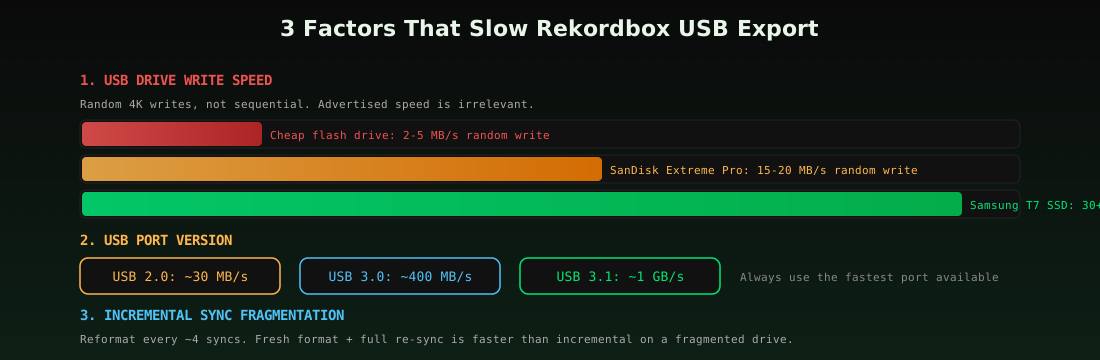
1. USB drive write speed (the main culprit)
Rekordbox does not copy one big file. It writes hundreds of small files per track: the audio file, the analysis file (ANLZ), the beatgrid, the waveform data, and the cue data. Most cheap USB drives are optimized for sequential writes of large files, not random writes of many small files. DJ TechTools measured real-world Rekordbox transfer speeds and found that some drives sync 100 GB of music up to 20 times faster than slower models. The advertised read speed on the packaging is irrelevant. What matters is random 4K write speed.
Recommended drives for fast Rekordbox export in 2026:
- Samsung T7 Portable SSD (1 TB) — SSD, not flash. Consistently fast random writes. Works on all CDJs via USB-A adapter.
- SanDisk Extreme Pro USB 3.2 (128 GB) — Flash drive with good random write performance. FAT32 for older CDJs, exFAT for newer.
- Crucial X6 Portable SSD (1 TB) — Budget SSD option. Reliable across CDJ generations.
2. USB 2.0 port
If your computer has USB 3.0 or 3.1 ports, use them. USB 2.0 caps at about 30 MB/s in theory, less in practice. A DJ on the DJ TechTools forum reported 25 to 30 minutes for 700 tracks on USB 3.0, while others on USB 2.0 waited over two hours for the same count.
3. Incremental sync vs full reformat
Rekordbox incremental sync (adding new tracks to an existing USB) gets slower over time as the drive fragments. One DJ on StartingToDJ noted: "I am formatting my CDJ USBs approximately every four syncs. A fresh format and full re-sync is faster than an incremental sync on a fragmented drive." If your exports are getting progressively slower, reformat the USB and do a full sync.
4. Playlist size over 12-13 GB
Rekordbox has a known issue exporting very large playlists in one pass. If you are exporting more than about 12 GB at once, split it into multiple smaller playlists and sync them one at a time. This avoids the stall-at-40-percent problem that shows up repeatedly in forum reports.
Troubleshooting Matrix: 9 Common Export Problems
Here are the nine export problems that come up most often, with the cause and fix for each. Most of these are documented across the official Rekordbox troubleshooting FAQ, Pioneer DJ forum, and r/Rekordbox.
| Problem | Likely cause | Fix |
|---|---|---|
| USB not recognized by CDJ | Wrong file system (NTFS, APFS) or wrong partition scheme (GUID instead of MBR) | Reformat to FAT32 or exFAT with Master Boot Record scheme |
| USB not recognized by Rekordbox | Drive letter conflict on Windows, or drive mounted read-only | Reassign drive letter in Disk Management, or reformat |
| Export stuck at a percentage | Corrupted file in the playlist, or playlist over 12 GB | Check the export log for the failing file, remove it, split large playlists into smaller ones |
| Some tracks missing after export | Original file moved or renamed since import (Rekordbox stores absolute paths) | File > Display Missing Files, relocate each track, then re-export |
| Tracks exported but no waveform on CDJ | Tracks not analyzed before export, or analysis data corrupted | Re-analyze tracks in Rekordbox (right-click > Analyze), then re-export |
| Hot cues missing on CDJ | Cues saved on CDJ but not synced back to collection, or cues set after last export | Plug USB in, Sync Manager, click left arrow to import performance data, then re-export |
| Export button greyed out | USB mounted read-only, or Rekordbox in wrong mode | Switch to EXPORT mode, check USB is writable, reformat if needed |
| CDJ-3000X cannot browse tracks | OneLibrary (formerly Device Library Plus) not exported | In Rekordbox, right-click Device Library Plus on the USB, select Convert from Device Library |
| Mac quarantine blocks export | macOS xattr quarantine flag on downloaded files | Run sudo xattr -cr /path/to/music/folder in Terminal, then re-export |
How to Clone a USB to Another USB
Every DJ should carry a backup USB. If your primary fails mid-gig, you need a second drive with identical content, ready to plug in. Cloning is faster than exporting twice.
Method 1: Rekordbox Sync Manager (simplest)
Plug in both USBs, open Sync Manager, and sync the same playlists to both. This is the safest method because Rekordbox writes the correct folder structure to each drive. Downside: it does a full sync, not a byte-for-byte copy, so it takes as long as two separate exports.
Method 2: Disk Utility clone (Mac)
- Open Disk Utility.
- Select your source USB, click Restore.
- Choose your destination USB as the restore target.
- Click Restore. This does a block-level copy of the entire drive.
Method 3: dd (Mac/Linux, advanced)
For a byte-for-byte clone, use dd in Terminal. This copies everything including the partition table:
sudo dd if=/dev/disk2 of=/dev/disk3 bs=4m
Replace disk2 with your source USB and disk3 with your destination. Use diskutil list to identify the correct disk identifiers. Getting this wrong overwrites the wrong drive, so double-check.
Method 4: Windows (USB Image Tool or dd for Windows)
Use USB Image Tool (free) to create an image of your source USB and restore it to the destination. This handles the partition table and boot sector correctly.
After cloning, always test the backup USB on a CDJ before relying on it at a gig. Cloned drives can have subtle file system errors that only surface when the CDJ tries to read them.
Engine DJ vs Rekordbox Export
If you play on Denon DJ hardware (SC5000, LC6000, Prime 4) instead of Pioneer CDJs, you use Engine DJ instead of Rekordbox. The export concept is the same but the execution differs. This comparison comes up because GSC shows DJs searching "engine dj vs rekordbox" and the two ecosystems are the main choice for USB-based DJing in 2026.
| Feature | Rekordbox | Engine DJ |
|---|---|---|
| Export method | Sync Manager, playlist-based | Drag and drop or sync, playlist-based |
| USB format | FAT32 or exFAT (MBR) | FAT32 or exFAT |
| Export speed | Slow on cheap drives, faster on SSDs | Generally faster than Rekordbox on equivalent hardware |
| Hot cues on USB | Yes, up to 8 per track | Yes, up to 8 per track |
| Waveform on hardware | Yes (RGB on CDJ-3000) | Yes (color on SC5000) |
| Key display | Camelot or Open Key | Camelot or musical notation |
| Cloud sync | Rekordbox Cloud (subscription) | Engine Cloud (free with hardware) |
| Backup USB clone | Manual (Sync Manager or disk clone) | Manual (disk clone or Engine sync) |
Both platforms read ID3 tags for BPM and key. If you batch-tag your library with correct BPM and key before exporting, both Rekordbox and Engine DJ will use that data as a starting point for their own analysis. This is the single biggest thing you can do to make your USB library consistent across both ecosystems.
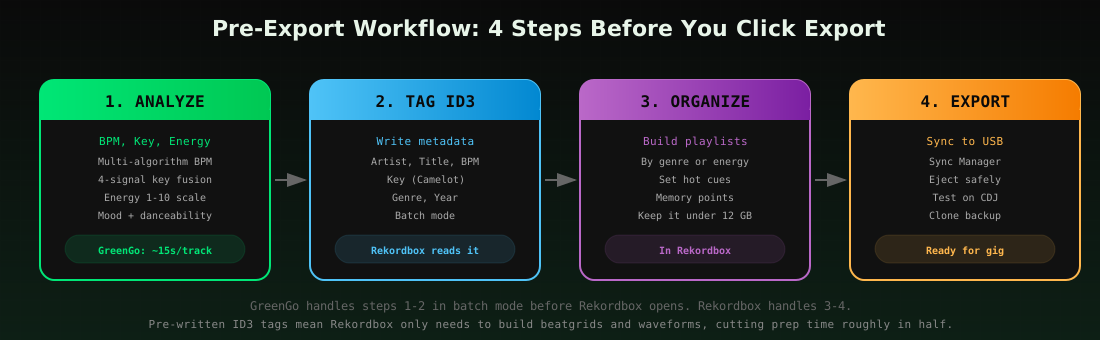
The Pre-Export Checklist: Analyze, Tag, Organize, Export
Before you click Export, run through this checklist. It is the difference between a USB that works flawlessly at every gig and one that has missing waveforms, wrong BPM, and no hot cues.
1. Analyze every track
Every track in your export playlist needs BPM, key, and beatgrid analyzed. If you skip this, the CDJ will show a flat waveform and no BPM. You can let Rekordbox do it, but Rekordbox analysis is one track at a time and can be inaccurate on half-time or double-time tracks. Rekordbox dynamic vs normal analysis has its own tradeoffs. A faster path: use GreenGo to batch-analyze your library first (BPM, key, energy, mood, danceability in about 15 seconds per track), then let Rekordbox read the pre-written ID3 tags. Rekordbox will still do its own beatgrid and waveform analysis, but the BPM and key will already be correct.
2. Tag ID3 metadata
Make sure every track has artist, title, BPM, and key written to the ID3 tags. The CDJ browser reads these fields. Tracks with missing artist or title show up as blank rows in the browser, which makes finding tracks on a CDJ-3000 screen painful in a dark booth. ID3 metadata is what makes your library usable on hardware. If you want to know exactly which ID3 fields each DJ platform reads, the ID3 tag field reference for DJ software covers Rekordbox, Serato, Traktor, VirtualDJ, and Engine DJ field by field.
3. Organize into playlists
Build playlists by genre, energy level, or set time. Do not export your entire collection. A 500-track open-format set is about 15 GB of MP3s. Exporting 5,000 tracks because you might need them is how you end up with a USB that takes six hours to sync and is impossible to navigate on a CDJ. Plan your set in advance and export only what you need, plus a small backup crate.
4. Export and test
Sync your playlists to the USB using Sync Manager. Eject safely. Plug the USB into a CDJ (or a friend's CDJ if you do not own one) and browse a few tracks. Check that waveforms load, hot cues appear, and BPM displays correctly. Do this the day before your gig, not the hour before.
5. Clone your backup
Clone the USB to a second drive using one of the methods above. Label both drives. Keep the backup in a different pocket, bag, or jacket than the primary. A USB that fails mid-set with no backup is the worst avoidable DJ problem there is.
If you want to streamline steps 1 and 2, the complete guide to preparing tracks for a DJ set walks through the full GreenGo-to-Rekordbox pipeline. The short version: GreenGo analyzes and tags your library in batch mode, you import into Rekordbox, Rekordbox reads the pre-written tags and only needs to build beatgrids and waveforms, then you export. It cuts the prep time roughly in half compared to letting Rekordbox do everything from scratch.
FAQ
What format should my USB be for Rekordbox?
FAT32 for maximum compatibility across all CDJ and XDJ generations. exFAT if you only play on post-2020 hardware (CDJ-3000, OPUS-QUAD, XDJ-XZ, XDJ-RX3) and need more than 32 GB. HFS+ (Mac OS Extended, Journaled) if you are Mac-only and want faster export speed. Never use NTFS or APFS. Always use Master Boot Record as the partition scheme.
Is exFAT or FAT32 better for DJing?
FAT32 is better for compatibility. It works on every CDJ ever made. exFAT is better for capacity and speed on modern hardware. If you play on CDJ-2000NXS2 or older, you must use FAT32. If you only play on CDJ-3000 or newer, exFAT removes the 32 GB file and volume limits. When in doubt, FAT32 is the safe choice.
How do I transfer music from Rekordbox to USB?
Switch to Export mode in Rekordbox, open Sync Manager in the bottom left, check the playlists you want to export, and click the right-pointing arrow. Rekordbox copies the audio files, analysis data, beatgrids, hot cues, and waveforms to the USB in the correct Pioneer folder structure. Do not drag files manually in Finder or Explorer.
How to export Rekordbox playlist to USB with hot cues?
Hot cues export automatically as long as they are saved in your Rekordbox collection before you sync. Set your cues in Rekordbox, then use Sync Manager to export. If you set cues on the CDJ during a gig, plug the USB back in and click the left arrow in Sync Manager to import them back into your collection before your next export.
Why is Rekordbox taking so long to export?
Three main reasons: your USB drive has slow random write speed (most cheap flash drives are bad at this), you are plugged into a USB 2.0 port instead of USB 3.0, or you are exporting a playlist larger than 12 GB in one pass. Switch to an SSD like the Samsung T7, use a USB 3.0 port, and split large playlists into smaller ones.
Why isn't Rekordbox reading my USB drive?
The drive may be formatted to NTFS or APFS (not supported), mounted read-only, or have a drive letter conflict on Windows. Reformat to FAT32 or exFAT with Master Boot Record scheme, check that the drive is writable, and on Windows reassign the drive letter in Disk Management if needed.
How to get songs onto a USB for DJing?
Format the USB to FAT32 or exFAT, import your tracks into Rekordbox, analyze them (BPM, key, beatgrid), set hot cues and memory points, organize into playlists, then use Sync Manager in Export mode to sync the playlists to the USB. Eject safely and test on a CDJ before your gig.
Does exFAT work on CDJs?
Yes, but only on post-2020 hardware: CDJ-3000, CDJ-3000X, CDJ-1500X, OPUS-QUAD, OMNIS-DUO, XDJ-XZ, and XDJ-RX3. Older CDJ-2000, CDJ-2000NXS, CDJ-2000NXS2, XDJ-RX, and XDJ-RX2 do not support exFAT. If you play on mixed hardware or borrow USBs from other DJs, FAT32 is the only universally compatible option.