Bad metadata ruins a DJ library. Tracks with missing BPM, wrong artist names, no cover art, or 'Track 01' as the title make it impossible to find what you need in Rekordbox or Serato. The Metadata tab in GreenGo fixes this, fast.
This guide covers everything the Metadata tab can do, from fixing a single track's tags to batch-editing an entire album.
Why Metadata Matters for DJs
When you import a track into DJ software, it reads the ID3 tags embedded in the file. If the BPM tag is empty, the software has to analyze the track itself (which takes time and may be less accurate). If the key tag is missing, you can't use harmonic mixing features. If the artist is wrong, your library is a mess.
ID3 metadata is the standard for embedding information in MP3 files. GreenGo reads and writes ID3 tags so your tracks show up correctly in every major DJ platform: Rekordbox, Serato, Traktor, VirtualDJ.
For a comparison of tag editors, see our best MP3 tag editors ranking and our guide to batch audio taggers.
The Metadata Tab Interface
Click Metadata in the bottom toolbar. The interface has two panels:
- Left sidebar: File list with checkboxes, Select All checkbox, file count, Import Files button
- Right panel: Editor form with cover art area and 11 text fields
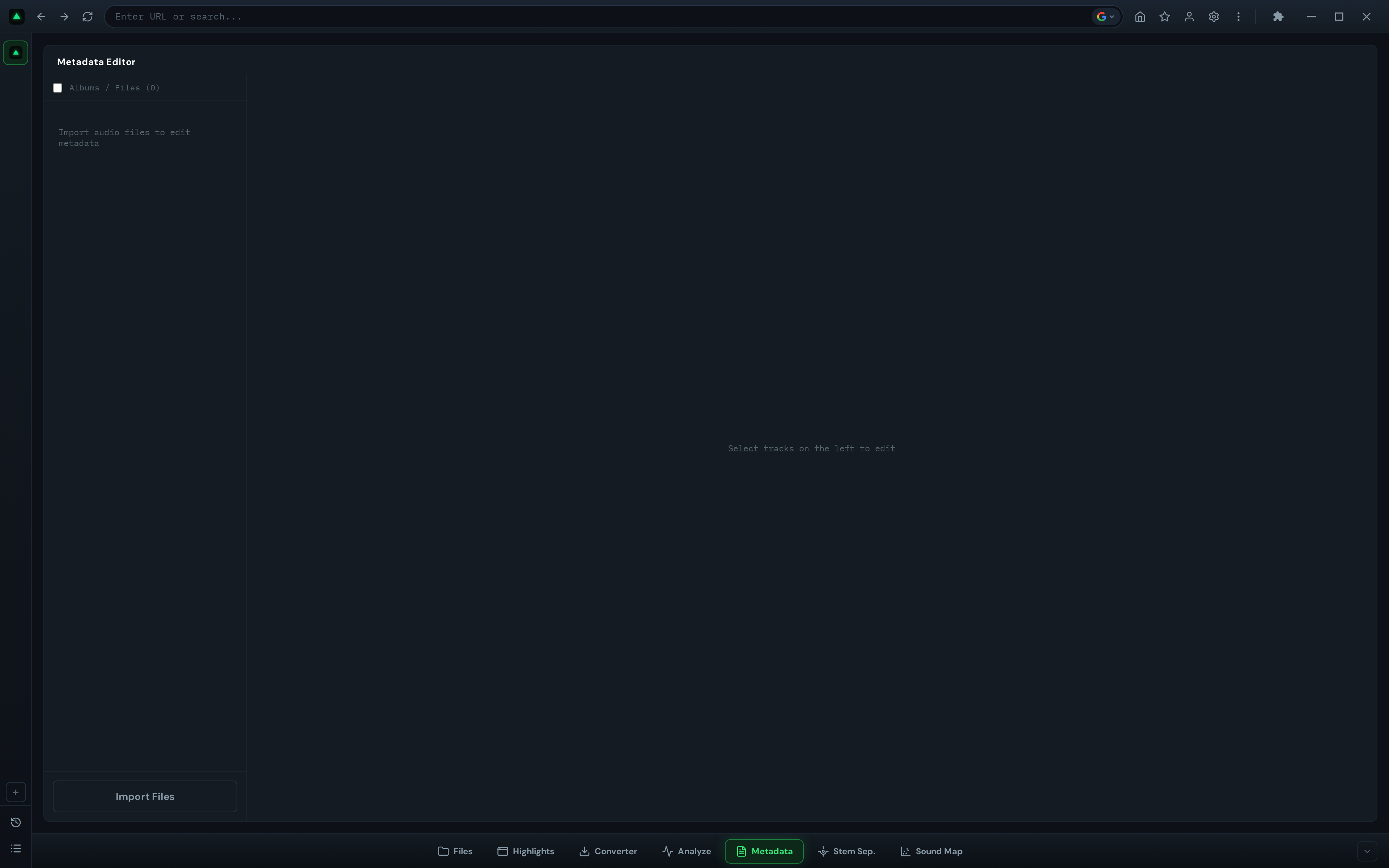
When no files are loaded, the sidebar shows 'Import audio files to edit metadata' and the editor shows 'Select tracks on the left to edit.'
Importing Files
There are two ways to load files into the Metadata tab:
Method 1: Import Files Button
Click 'Import Files' at the bottom of the sidebar. A file picker opens, filtered to audio formats: MP3, WAV, FLAC, M4A, OGG, AAC, WMA. Select one or more files. They appear in the sidebar list with checkboxes.
Method 2: Send from File Manager
In the File Manager tab, click the metadata icon (tag icon) on any audio file. The file is automatically sent to the Metadata tab and loaded for editing. See the File Manager integration section below.
Loaded files show their filename in the sidebar. A small marker appears next to files with unsaved changes.
Editing a Single Track
Here's the step-by-step for editing one track:
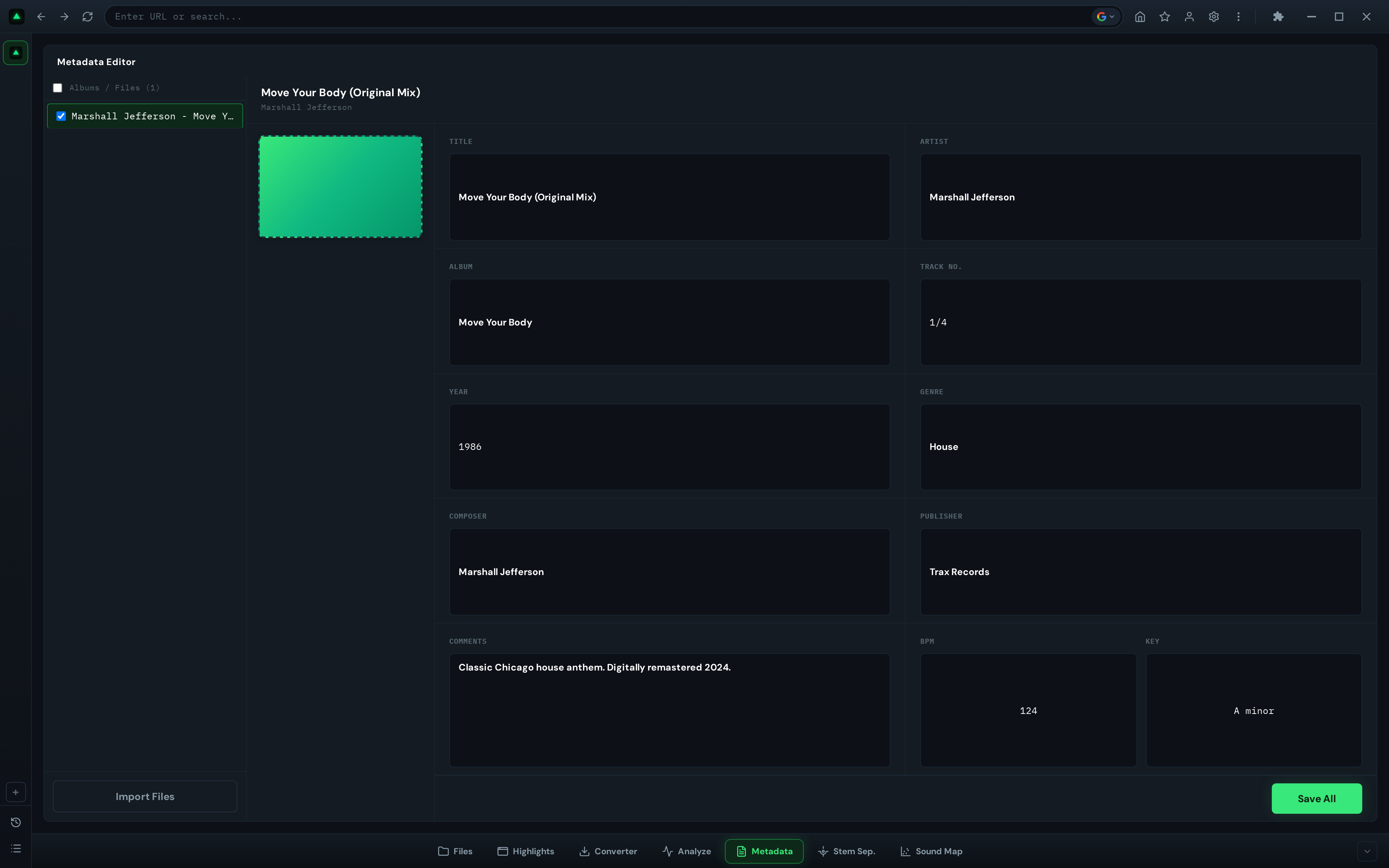
- Select the file — Click the checkbox next to a file in the sidebar, or click the file name itself. The editor form on the right activates and populates with the file's current metadata.
- Review current tags — The form shows 11 fields: Title, Artist, Album, Track No., Year, Genre, BPM, Key, Composer, Publisher, Comments. The cover art area on the left shows the current album art (or 'No Cover' if none).
- Edit fields — Click any field and type. Changes are tracked automatically (a marker appears next to the file in the sidebar).
- Click Save All — The button is at the bottom of the editor form. This writes all changes to the file's ID3 tags.
Auto-save behavior: Changes are automatically saved when you switch to another tab or close the app. This prevents data loss if you forget to click Save All. However, it also means you can't 'discard' changes by switching tabs, once you've typed a new value, it's committed on tab switch.
Batch Editing Multiple Tracks
The Metadata tab shines when you need to fix tags across multiple files. Here's how batch editing works:
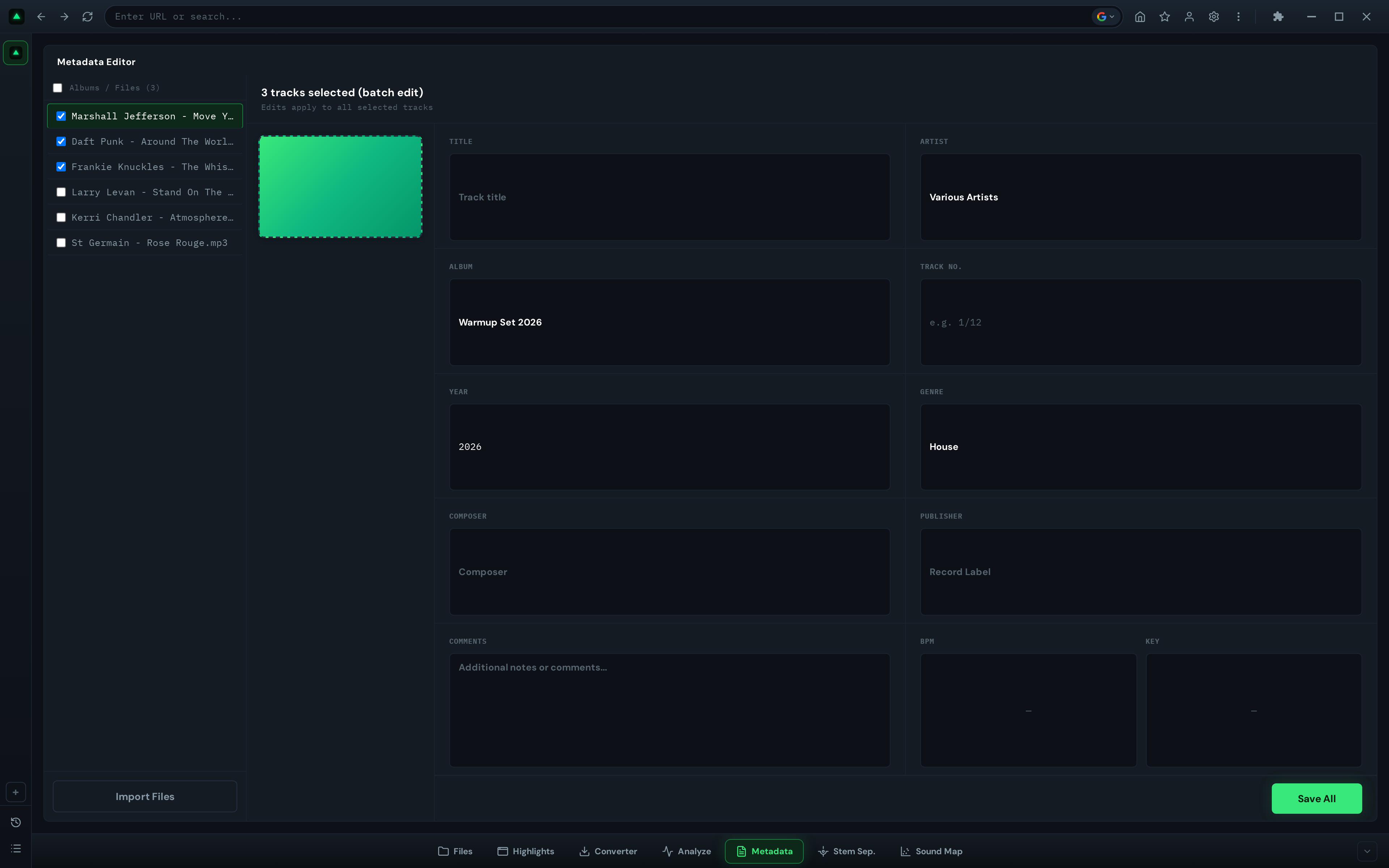
- Select multiple files — Check the checkboxes next to multiple files in the sidebar, or use the 'Select All' checkbox at the top.
- Review aggregated values — The editor form shows the common value for each field. If selected files have different values for a field, it shows '(Multiple Values)' as a placeholder.
- Edit shared fields — Type a new value in any field. The change applies to ALL selected files. For example, if you select 10 tracks from the same album and type the album name once, all 10 files get updated.
- Leave fields unchanged — If you don't touch a field that shows '(Multiple Values)', those values remain untouched in each file. Only fields you explicitly edit get overwritten.
- Click Save All — All changes are written to all selected files.
Common batch editing scenarios:
- Fix album name across all tracks in an album
- Set the artist name for a folder of unlabeled tracks
- Add the year to a batch of files from the same release
- Set the genre for a genre-specific folder
Adding and Replacing Cover Art
The cover art area on the left side of the editor is clickable. Here's how to use it:
- Select one or more files in the sidebar
- Click the cover art area (shows 'No Cover' if empty, or the current image if present)
- A file picker opens, filtered to image formats (JPEG, PNG)
- Select an image file
- The cover art is applied to all selected files
- Click Save All to write the cover art to the files' ID3 APIC frames
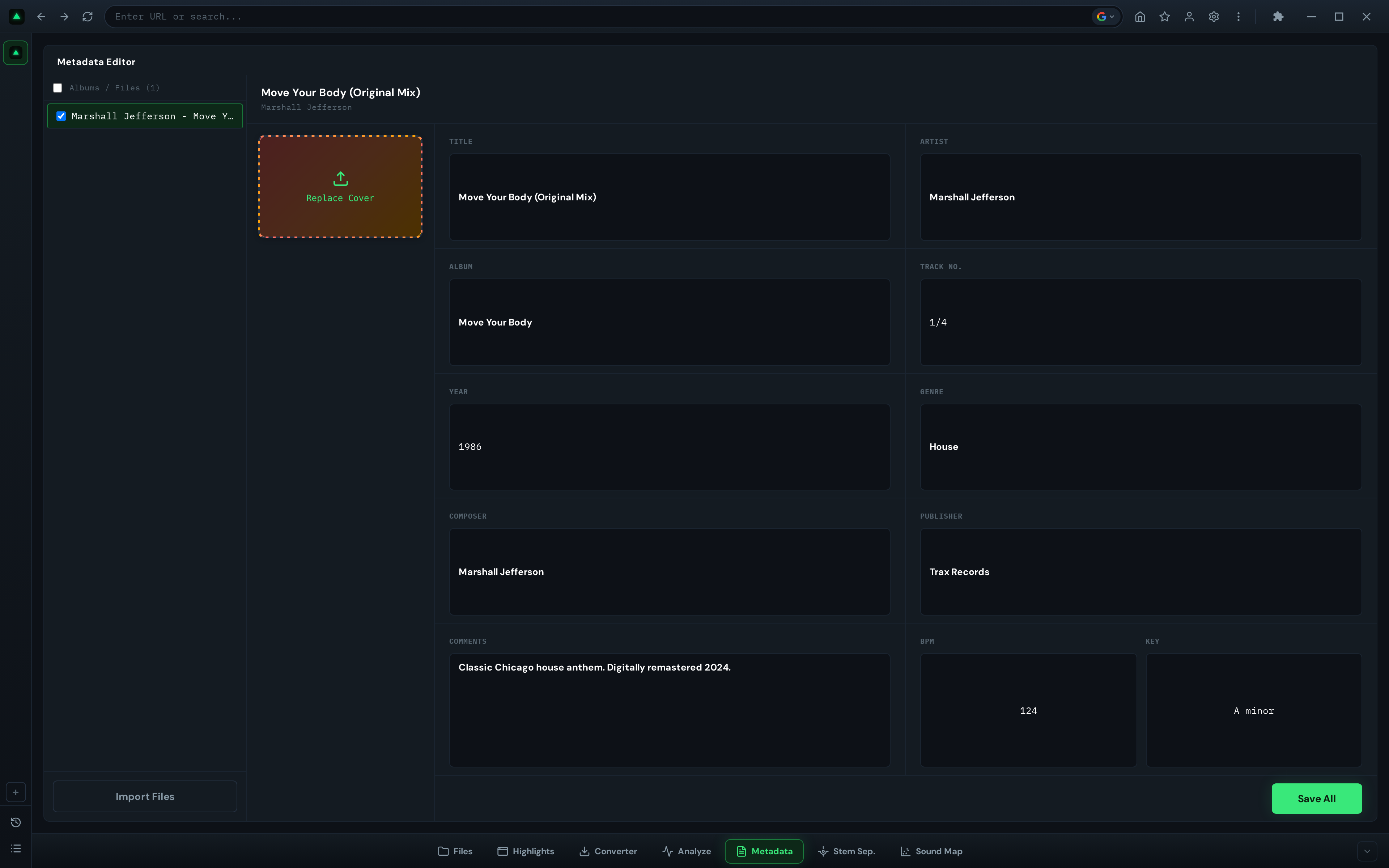
Tip: Cover art is embedded directly in the MP3 file, not stored as a separate file. This means it travels with the track wherever it goes, including into DJ software.
Auto-Tagging from Analysis
The Metadata tab works hand-in-hand with the Analyze tab. When you analyze tracks, GreenGo can automatically write the detected BPM, key, and energy to the files' ID3 tags.
To enable auto-tagging:
- Open Settings (gear icon in the toolbar)
- Enable 'Write ID3 metadata on conversion'
- Analyze tracks in the Analyze tab
After analysis, the following tags are written automatically:
- TBPM — The detected BPM (e.g., 128)
- TKEY / INITIALKEY — The detected key (e.g., Am)
- Comment — The energy score (e.g., 'Energy: 78')
This also happens automatically when you download tracks via the Converter tab with 'Auto Analyze' enabled. The full pipeline: download → analyze → write tags, all in one step.
Sending Files from File Manager
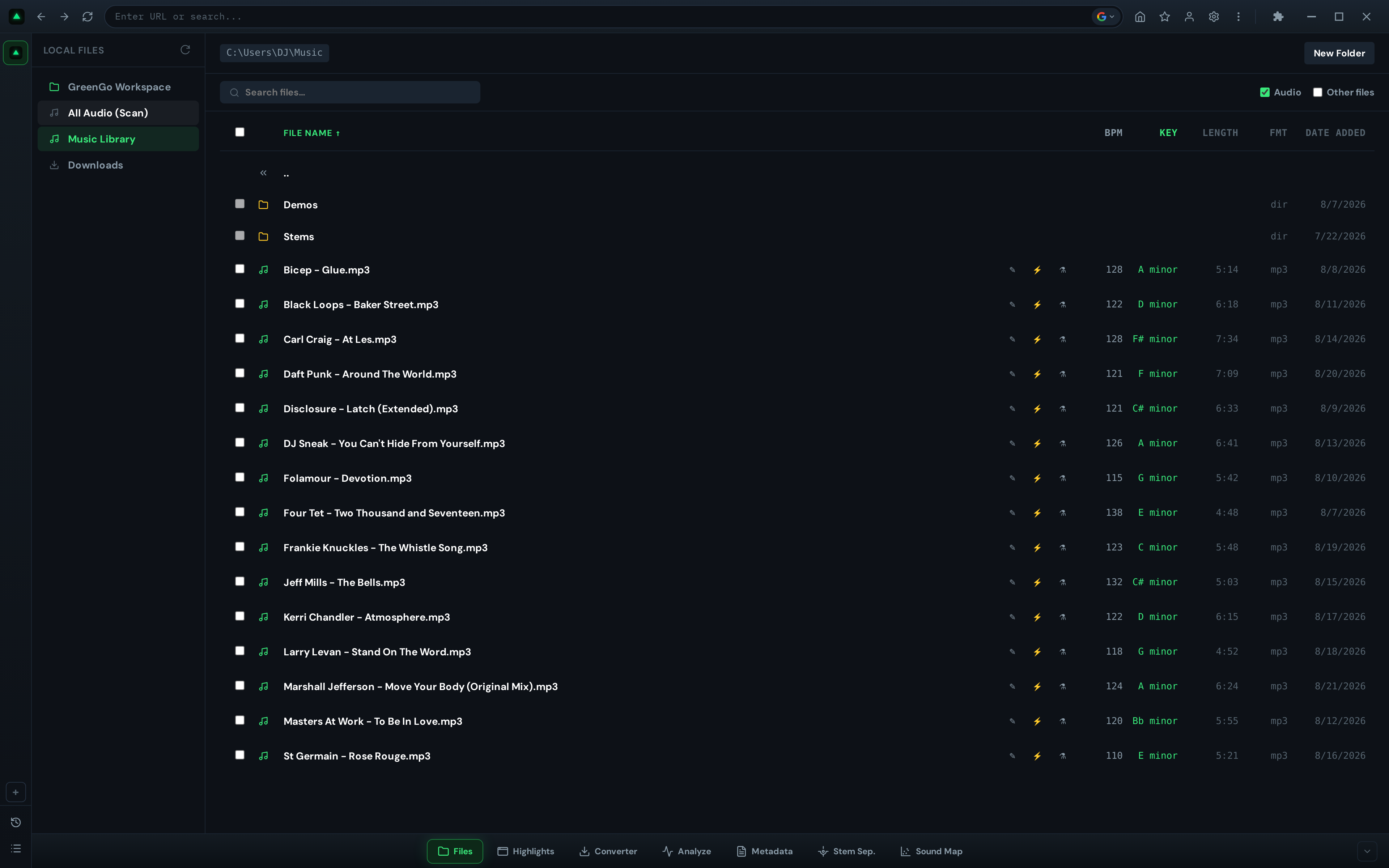
The File Manager tab has a metadata icon (tag icon) on each audio file. Click it to:
- Automatically switch to the Metadata tab
- Load the file into the editor
- Display its current metadata for editing
This is the fastest way to fix a single track's tags while browsing your library. See a track with bad metadata? Click the tag icon, fix it, save, and go back to browsing.
What Gets Written (and What Doesn't)
It's important to understand which fields are actually written to the file versus which are display-only:
| Field | Read from file? | Written to file? | ID3 Frame |
|---|---|---|---|
| Title | Yes (all formats) | Yes (MP3 only) | TIT2 |
| Artist | Yes (all formats) | Yes (MP3 only) | TPE1 |
| Album | Yes (all formats) | Yes (MP3 only) | TALB |
| Year | Yes (all formats) | Yes (MP3 only) | TYER |
| Genre | Yes (all formats) | Yes (MP3 only) | TCON |
| BPM | Yes (all formats) | Yes (MP3 only) | TBPM |
| Key | Yes (all formats) | Yes (MP3 only) | TKEY / INITIALKEY |
| Cover Art | Yes (all formats) | Yes (MP3 only) | APIC |
| Track No. | Yes (all formats) | Display only | - |
| Composer | Yes (all formats) | Display only | - |
| Publisher | Yes (all formats) | Display only | - |
| Comments | Yes (all formats) | Display only | - |
Key takeaway: Writing is currently limited to MP3 files only. GreenGo can read metadata from FLAC, M4A, OGG, WAV, AAC, and WMA, but the write function uses the node-id3 library which only supports MP3. If you need to edit tags on FLAC or M4A files, convert them to MP3 first using the Converter tab.
The ID3 version used for writing is ID3v2.3, which is the most widely compatible version across DJ software.
Frequently Asked Questions
Can I edit metadata on FLAC or M4A files?
You can read metadata from any supported format, but writing is currently limited to MP3 files. To edit tags on FLAC or M4A, convert to MP3 first using the Converter tab, then edit the metadata.
Does GreenGo write Camelot notation to the tags?
The Metadata tab writes the key as text (e.g., 'Am') to the TKEY/INITIALKEY frame. Camelot notation (8A, 3B) is written by the Analyze tab's auto-tagging feature, which uses the Python backend with full DJ software compatibility (TXXX:INITIALKEY, TXXX:OPENKEY frames).
What happens if I edit a field and then switch tabs?
Changes are auto-saved when you switch tabs. This is by design to prevent data loss. If you want to discard changes, use the Reset approach: re-import the file to reload its original metadata before the auto-save triggers.
Can I undo changes after saving?
No. Once you click Save All (or auto-save triggers on tab switch), the changes are written to the file permanently. There's no undo. Always verify your batch edits before saving, especially when editing multiple files.
What image formats work for cover art?
JPEG and PNG are supported. The image is embedded directly in the MP3 file's APIC frame. There's no automatic resizing, so use reasonably sized images (500x500 to 1000x1000 pixels is typical for album art).
How do I remove cover art from a file?
Currently, the Metadata tab doesn't have a 'remove cover art' button. To clear cover art, you'd need to use an external tag editor. The Metadata tab can replace cover art but not delete it.
Is it legal to download audio from YouTube?
Downloading audio from YouTube may violate YouTube's Terms of Service and copyright law, depending on the content and your jurisdiction. The Converter is intended for your own content, copyright-free material, or content you have explicit permission to download. GreenGo does not support piracy. With power comes responsibility — always respect copyright laws and creators' rights.