BPM. Key. Energy. Mood. Danceability. Five numbers that tell you everything you need to know about a track before you play it. The Analyze tab in GreenGo detects all of them, either on local files or on tracks playing in your browser, and writes the results to your files for DJ software compatibility.
This guide covers everything the Analyze tab can do, from single-track analysis to batch-processing your entire library.
What the Analyze Tab Does
The Analyze tab runs three detection engines on your audio:
- BPM detection — Uses 12 different algorithms with weighted voting to find the tempo. Snaps to integer BPM and corrects common octave errors (2x/0.5x tempo). Range: 70-200 BPM.
- Key detection — Uses a 7-signal ensemble (CNN models, libKeyFinder, chroma analysis, Krumhansl-Schmuckler) with genre-aware parameters. Returns the musical key (e.g., Am, F#) and Camelot wheel notation (e.g., 8A, 3B). Calibrated at approximately 87% accuracy on the GiantSteps dataset.
- Vibe analysis — Uses ML models (RandomForest) to compute energy (0-100), mood (9 categories), and danceability (0-100). Analyzes a 25-second clip from the track's center for speed.
For a deeper dive into BPM detection methods, see our BPM detection comparison guide. For key detection theory, see our song key finder guide.
The Interface at a Glance
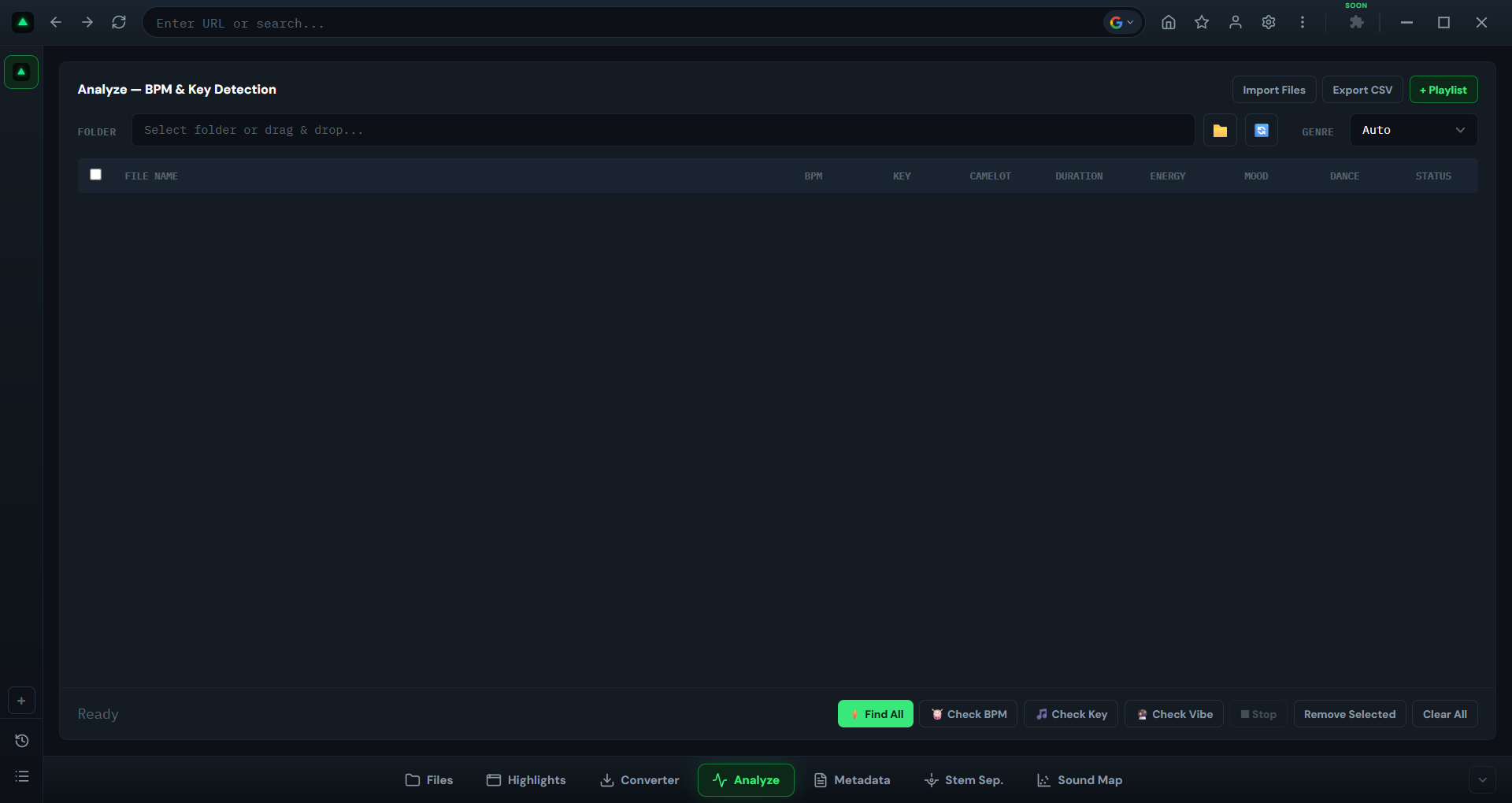
Click Analyze in the bottom toolbar. The main area shows:
- Header bar: Import Files button, Export CSV button, + Playlist button
- Toolbar: Folder path input, Browse button, Refresh button, Genre dropdown
- Results table: Checkbox, File Name, BPM, Key, Camelot, Duration, Energy, Mood, Dance, Status
- Control buttons: Find All, Check BPM, Check Key, Check Vibe, Stop, Remove Selected, Clear All
Importing Tracks
There are three ways to get tracks into the analysis table:
Method 1: Import Files
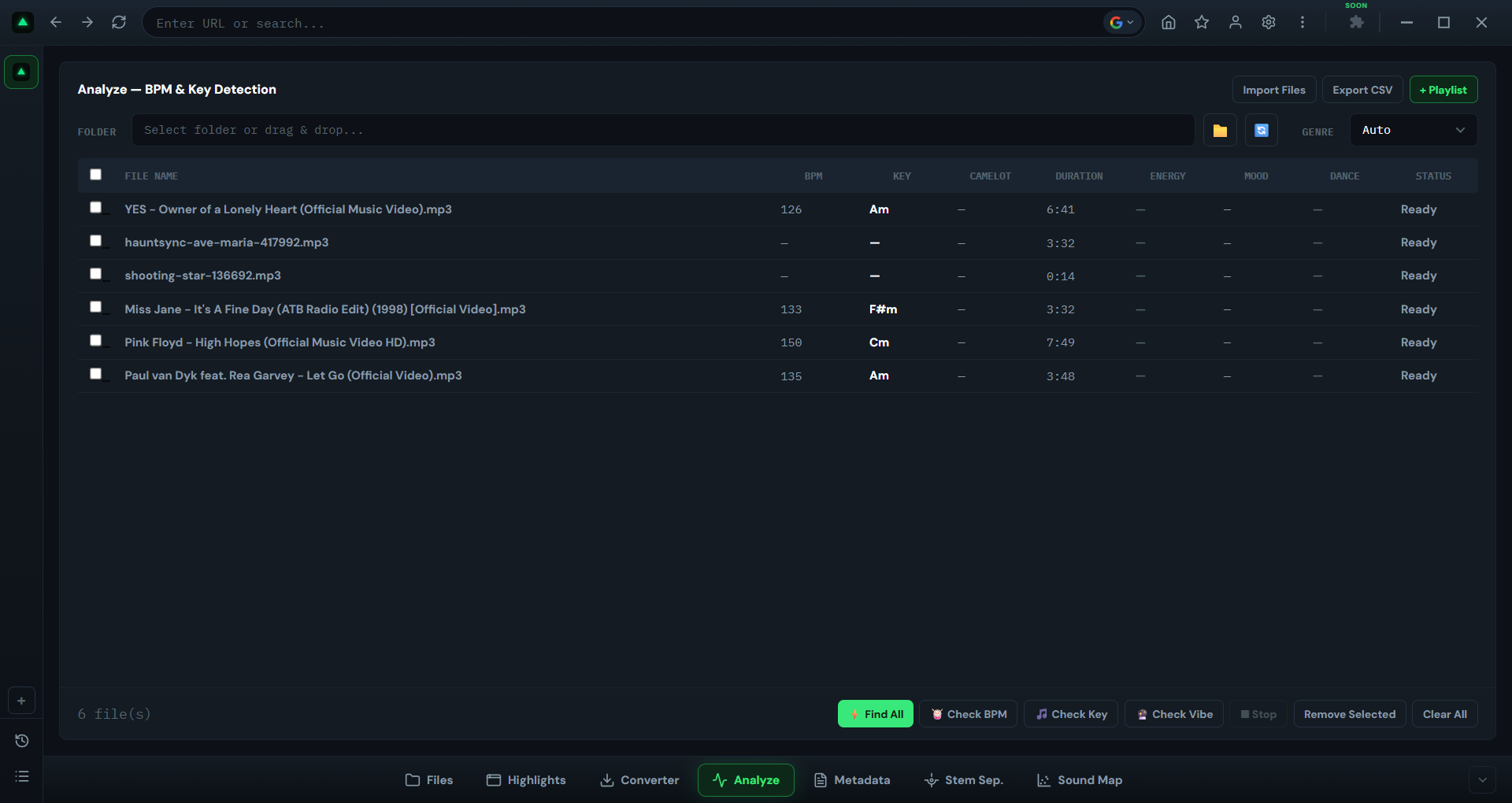
Click 'Import Files' in the header. A file picker opens, filtered to audio formats (MP3, WAV, FLAC, OGG, M4A, AAC, WMA). Select one or more files. They appear in the table with their existing metadata pre-filled (BPM, key, duration from ID3 tags if present).
Method 2: Browse Folder
Type a folder path into the input field or click the Browse button to pick a folder. Click Refresh to scan it. All audio files in the folder are added to the table. Duplicates (same path) are filtered automatically.
Method 3: Drag & Drop
Drag audio files from your file manager directly onto the table area. They're added immediately.
The Four Analysis Buttons
Once your tracks are in the table, you have four analysis options:
| Button | What It Detects | When to Use |
|---|---|---|
| ⚡ Find All | BPM + Key + Camelot + Energy + Mood + Danceability | Full library prep, first-time analysis |
| 🥁 Check BPM | BPM only | When keys are already known, just need tempo |
| 🎵 Check Key | Key + Camelot only | When BPM is already known, just need key |
| 🔮 Check Vibe | Energy + Mood + Danceability | When BPM/key are known, need energy for set planning |
If you have tracks selected (checkboxes checked), analysis runs only on those. If none are selected, it runs on all tracks in the table.
Reading Your Results
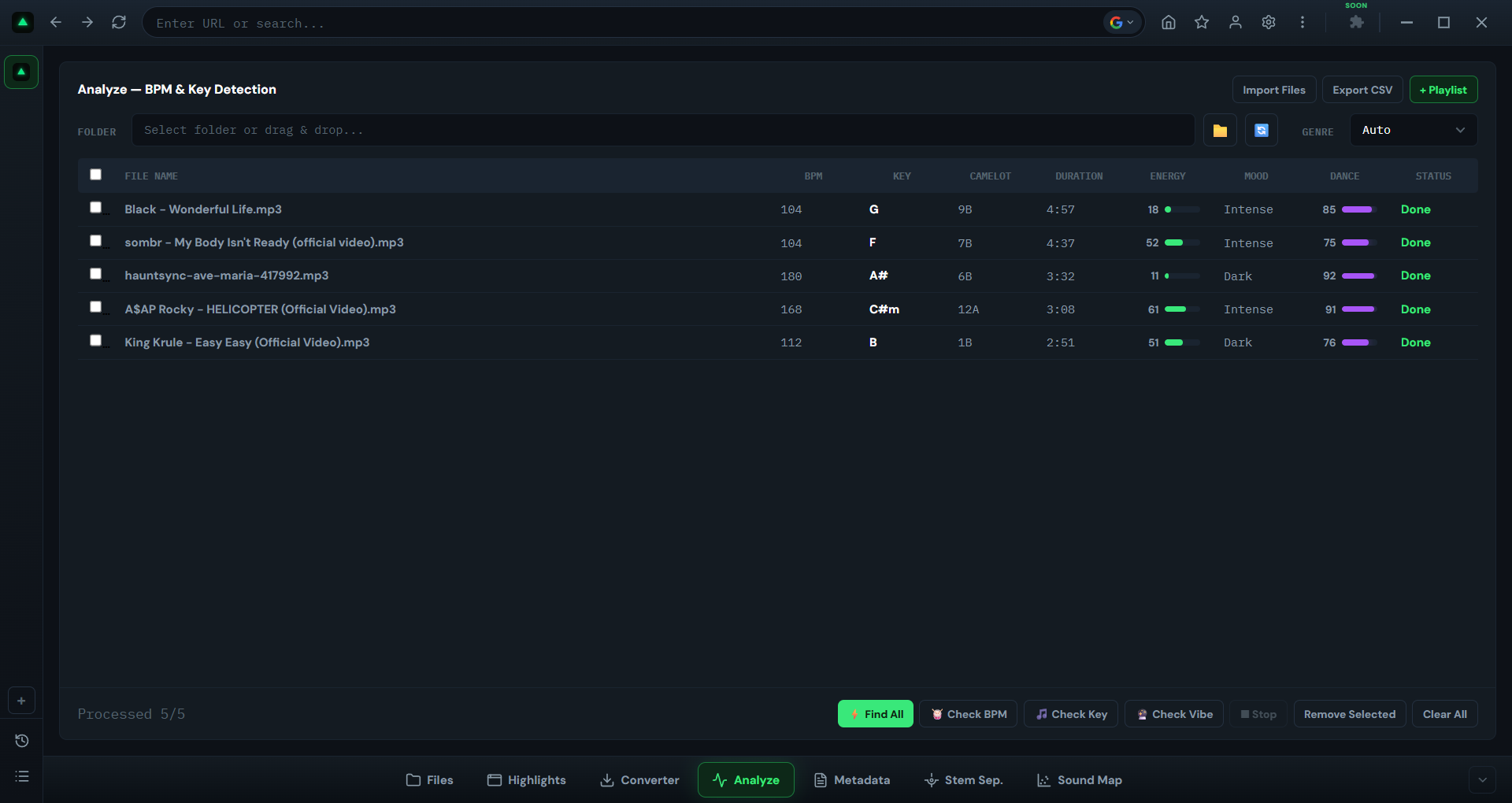
After analysis, the table fills in with results. Here's what each column means:
BPM
An integer value (e.g., 128, 140, 174). GreenGo snaps to common production tempos and corrects octave errors, so you won't get 64 when the track is 128, or 256 when it's 128. Range is 70-200 BPM.
Key
The musical key in sharp notation (e.g., Am, C#, F#m). GreenGo normalizes to sharps, so you'll see G# not Ab. The key detection engine uses 7 independent signals with weighted voting, tuned for electronic music with bass-root confirmation.
Camelot
The Camelot wheel notation (e.g., 8A, 3B, 12A). This is the industry standard for harmonic mixing, used by Rekordbox, Serato, Traktor, and VirtualDJ. Tracks with adjacent Camelot codes (e.g., 8A → 7A or 9A) are harmonically compatible.
Duration
Track length in mm:ss format (e.g., 5:32).
Energy
A score from 0-100, displayed as a green progress bar. Represents the overall loudness and intensity of the track. Useful for set planning: low-energy tracks for warmup, high-energy for peak time.
Mood
One of 9 mood labels: Hyper, Dark, Melancholic, Intense, Neutral, Chill, Euphoric, Happy, Romantic. The mood classifier uses ML with genre-biased weighting, so a rock track is more likely to be classified as Intense or Dark, while a house track leans toward Euphoric.
Dance
A danceability score from 0-100, displayed as a purple progress bar. Computed as 85% rhythm analysis + 15% ML signal. Higher values mean the track has a stronger, more consistent groove.
Status
Shows the analysis state: Ready (not analyzed), Analyzing (in progress, with loading dots), Done (complete), or Error (with details in tooltip).
Batch Analysis
The Analyze tab processes multiple tracks in parallel. The concurrency level is configurable in Settings (1-8 concurrent jobs, default 2). More jobs means faster processing but higher CPU usage.
During batch analysis:
- The header shows 'Analyzed N/M' progress
- Each row shows loading dots while being analyzed
- Results appear as each track completes
- Individual errors don't stop the batch
- A toast notification shows the summary: 'Batch finished: X ok, Y failed'
Click Stop to halt batch analysis mid-process. Partial results are preserved, and you can re-run analysis on the remaining tracks.
For preparing a full DJ set efficiently, see our guide on prepping 50 tracks in under 30 minutes.
Browser Auto-Analysis
One of GreenGo's most powerful features is automatic analysis of tracks playing in the browser. Here's how it works:
- You're browsing YouTube, SoundCloud, or any music site in GreenGo's built-in browser
- You play a track
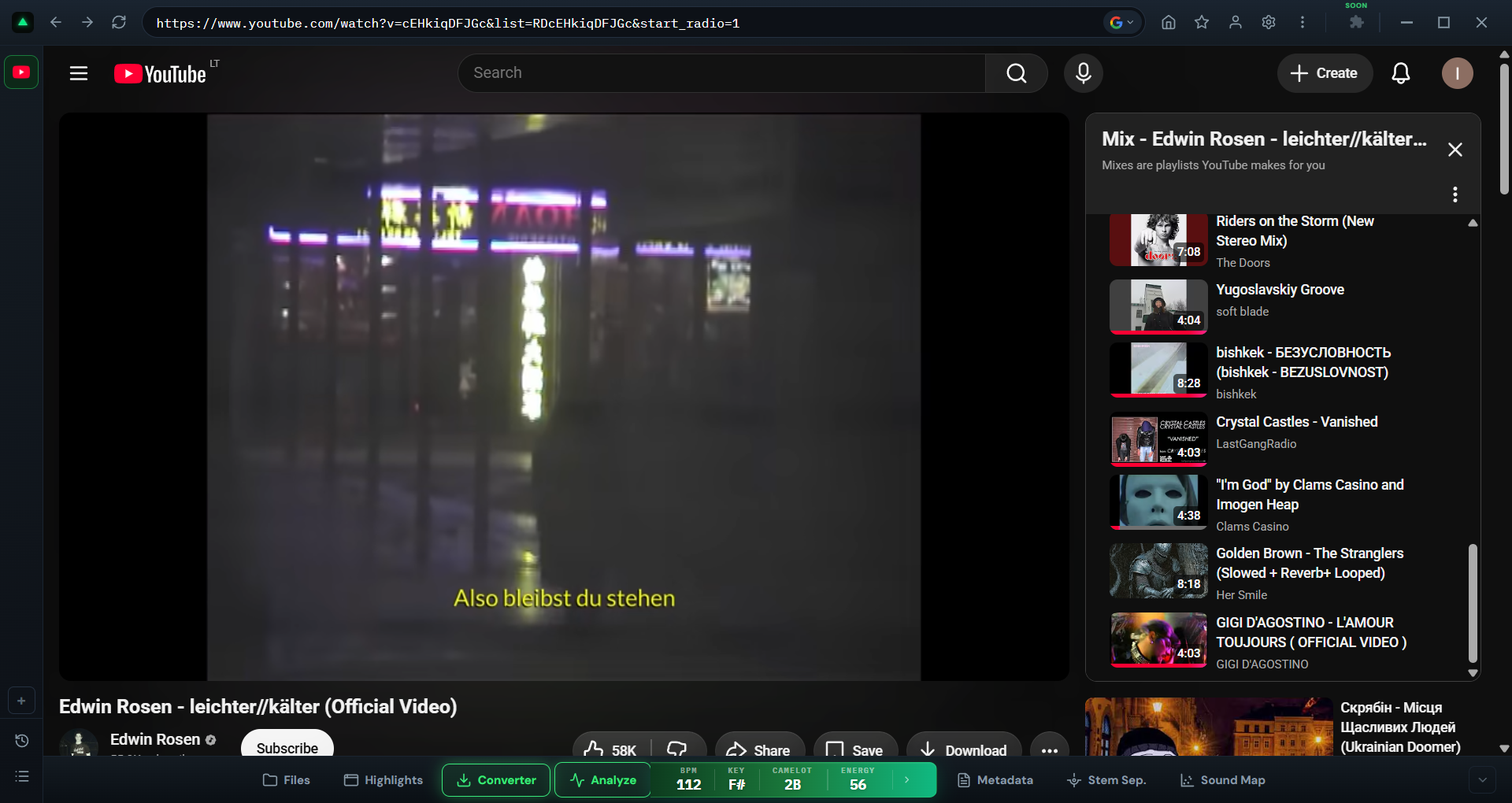
- After 3 seconds of playback, GreenGo automatically captures the audio and runs full analysis — that's GreenGo magic
- The Analyze button in the toolbar glows green when results are ready
- Hover over the Analyze button to see a slider with BPM, Key, Camelot, and Energy
Settings for auto-analysis:
- 'Auto Analyze' — Toggle on/off (default: ON)
- 'Auto Analyze Browser' — Toggle browser auto-analysis (default: ON)
- 8-minute duration cap (longer tracks are skipped for auto-analysis)
- Manual analysis available via hover slider even if auto is off
Temp files are cached (max 3 files, oldest evicted first) so re-analyzing the same track is instant.
Genre Selection and Why It Matters
The Genre dropdown in the toolbar affects key detection accuracy. GreenGo's key finder uses genre-specific parameters for bass-root confirmation and minor-key priors.
Available genres: Auto (default), EDM/House, Hip-Hop/Trap, Pop, Rock/Metal, Classical, Jazz, R&B/Soul, Reggae/Dancehall, Drum & Bass.
In Auto mode, GreenGo classifies the genre automatically based on BPM and spectral centroid. This works well for most tracks. If you're analyzing a specific genre (e.g., a folder of EDM tracks), manually selecting the genre can improve key detection accuracy by 2-5%.
Genre also affects mood prediction. The mood classifier applies genre-biased weights: rock tracks lean toward Hyper/Intense/Dark, while house tracks lean toward Euphoric/Chill.
Exporting Results
After analysis, you have two export options:
Export CSV
Click 'Export CSV' in the header to save the entire results table as a CSV file. This includes all columns: filename, BPM, key, Camelot, duration, energy, mood, danceability. Useful for spreadsheet analysis or sharing with collaborators.
Add to Playlist
Click '+ Playlist' to send analyzed tracks to a playlist. You can then organize tracks by BPM range, key, or energy level for set planning.
Write to ID3 Tags
If 'Write ID3 metadata' is enabled in Settings, BPM and key are written to the file's ID3 tags automatically after analysis. The tags use the correct frames for DJ software compatibility:
- MP3: TBPM (BPM), TKEY (key), TXXX:INITIALKEY, TXXX:OPENKEY
- M4A: tmpo (BPM), (c)key (key)
- FLAC/OGG: BPM, INITIALKEY, KEY
This means when you import your tracks into Rekordbox, Serato, or Traktor, the BPM and key are already there. No re-analysis needed in the DJ software.
Frequently Asked Questions
How accurate is GreenGo's BPM detection?
GreenGo uses 12 different detection algorithms with weighted voting, which significantly reduces octave errors (the most common BPM detection problem). BPM is snapped to integer values and common production tempos. For most electronic and hip-hop music, accuracy is very high. Live recordings and tracks with tempo drift may show slight variations.
How accurate is the key detection?
The key detection ensemble is calibrated at approximately 87% accuracy on the GiantSteps academic dataset. This is competitive with commercial tools like Mixed In Key. Accuracy is higher for electronic music with clear harmonic content and lower for complex arrangements with heavy modulation.
Can I analyze tracks from YouTube?
Yes. Play any track in GreenGo's browser and auto-analysis runs automatically after 3 seconds. You can also manually trigger analysis via the hover slider over the Analyze button. Tracks longer than 8 minutes are skipped for auto-analysis but can be analyzed manually.
What's the difference between Energy and Danceability?
Energy measures overall loudness and intensity (how 'big' the track sounds). Danceability measures rhythmic consistency and groove (how easy it is to dance to). A ambient track can have low energy but high danceability if it has a steady pulse. A metal track can have high energy but low danceability if the rhythm is complex.
How many tracks can I analyze at once?
The free trial allows 30 analyses. GreenGo is subscription-based with a 7-day free trial (no credit card required). Batch analysis processes tracks in parallel (1-8 concurrent jobs, configurable in Settings).
Does analysis work offline?
Yes. All analysis of local files runs entirely on your machine. No internet connection needed. Browser auto-analysis requires internet to play the track, but the analysis itself runs locally — that's GreenGo magic.