Every DJ knows the moment: you hear a remix or a live edit online that would be perfect for your next set, and there's no store link anywhere. I've been there hundreds of times. You have your music, the stuff you have every right to use, and you just want it properly tagged, analyzed, and ready to go. But instead of playing your set, you're sitting there babysitting pop-up ads on some free converter site. Click wrong, you land on a different page. Click wrong again, now you've got trackers and malware on your machine. It's not just annoying, it's genuinely dangerous for your data. And even if you dodge all that, you still get a 128kbps file with no metadata, wrong filenames, and zero BPM or key info. Then you open a separate tag editor. Then a separate analyzer. Why are we using four different tools when one app can do all of it? That's why I built GreenGo. This guide walks through the workflow I use now: capturing web audio into a clean, performance-ready library with one desktop app.
Why Sourcing Tracks from the Web Gets Messy
Music discovery happens across dozens of platforms now, but DJ preparation hasn't caught up. A track you find online arrives as a compressed stream with no usable metadata, no artist tag, no BPM, no key, often not even a clean filename.
Multiply that by a 40-track digging session and you get a Downloads folder full of files like track_final_v2 (1).mp3. Your DJ software can't sort what it can't read. We covered the full preparation checklist in our complete guide to preparing tracks for a DJ set, but it all starts with how the audio gets into your library in the first place.
The old answer was a chain of single-purpose tools: a converter site for the audio, a tag editor for the metadata, an analyzer for BPM and key, and a file manager to keep it all straight. Each hand-off loses time and introduces errors.
Why Free Converter Sites Are a Waste of Time
Let's talk about the "free converter" sites that dominate search results. You paste a link, close three pop-ups, solve a CAPTCHA, and get a 128kbps file named after the page URL. That's the good outcome.
The bad outcomes are worse. These sites die constantly, the one you bookmarked last month is probably already gone. Many bundle adware or redirect you through malicious ad networks. And even when they work, the output is low-bitrate audio with zero metadata, which means your preparation work is still ahead of you.
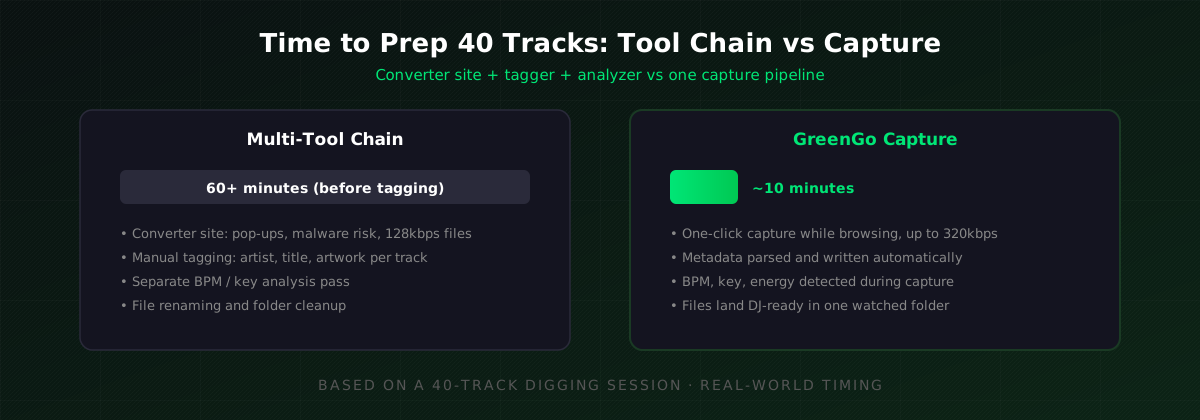
Before I built GreenGo, I used these sites myself. A converter takes 1-2 minutes per track when everything works, and that's before re-tagging, because the metadata that comes out is usually wrong or missing entirely. For a 40-track digging session that's over an hour of babysitting pop-ups, with a real risk of picking up malware along the way, and your tagging work still ahead of you.
Problems I Kept Hitting (and How Capture Fixes Them)
Before this workflow existed, my preparation nights followed the same painful script. If you DJ or produce, some of these will feel familiar:
- The Downloads-folder graveyard. Forty files named audio (3).mp3 and final_master_v2.mp3. I once skipped a track in a set simply because I couldn't find it, it was there, just unsearchable. GreenGo parses artist and title at capture time, so files land named and tagged.
- Wrong metadata that poisons your library. Converter sites love writing the site's own name into the artist field. Cleaning that up track by track is slower than tagging from scratch. Captured tracks come with clean ID3 tags your DJ software reads directly.
- The 128kbps surprise at club volume. A file that sounded fine in headphones falls apart on a big system. Capture pulls the best quality the source serves, up to 320kbps MP3 or lossless.
- Re-analyzing everything twice. Downloading in one tool, then waiting for the DJ software to analyze BPM and key on import. GreenGo does the analysis during capture and writes TBPM/TKEY tags, so the columns are already populated on import.
- The 2 a.m. last-minute scramble. When preparation takes hours, it gets postponed to the night before. When it takes minutes, it actually happens. That, honestly, is the whole reason GreenGo exists.
What Does "Capture" Actually Mean?
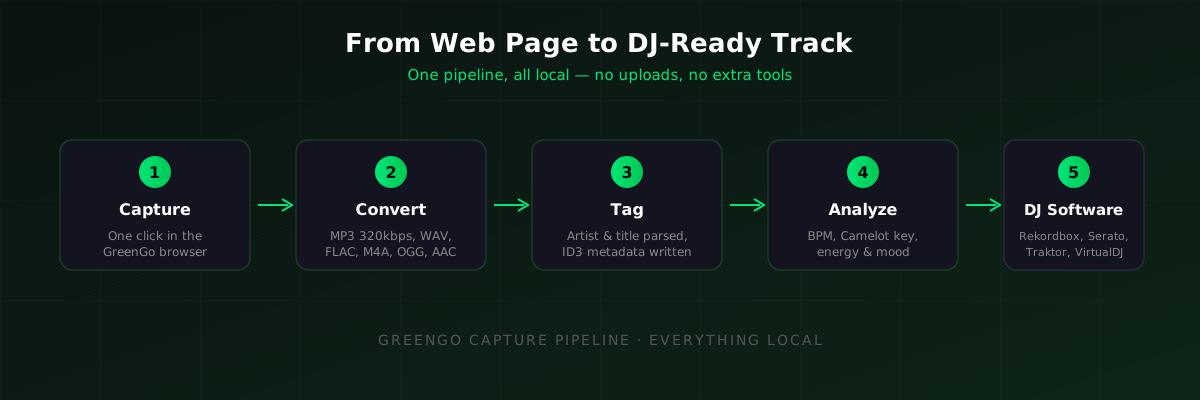
Capture is a different approach: instead of copying links out to a converter, the conversion pipeline lives inside your browser. GreenGo is a Chromium-based desktop browser built for DJs and musicians. When you're on a supported audio page, a capture button appears, one click queues the track straight into GreenGo's processing pipeline.
From there, everything happens locally on your machine: the audio is converted to your preferred format (MP3 320kbps, WAV, FLAC, M4A, OGG, or AAC), the page title is parsed into artist and title tags, and the track is queued for BPM detection, key detection, and energy analysis. No uploads, no remote servers, no browser-extension juggling.
One capture replaces the entire converter-tagger-analyzer chain. The file that lands in your library is already something Rekordbox or Serato can sort and search.
SoundCloud and YouTube Integration: What Actually Works
A question I get constantly: "is there a SoundCloud to YouTube integration?" The honest answer is no, not natively. SoundCloud cannot push audio to YouTube, and YouTube cannot import a SoundCloud playlist. The two platforms share exactly nothing. But depending on who you are, there are three real paths that cover what people actually mean by that search.
If you're an artist: distribution, not integration
Getting your own music from SoundCloud onto YouTube is a distribution problem. Services like DistroKid, TuneCore, or CD Baby deliver to YouTube Music and register the audio in Content ID, or you can upload directly through YouTube Studio. Either way it's an upload, not a sync, the platforms never talk to each other.
If you want to move playlists: transfer tools move metadata, not audio
Tools like TuneMyMusic and Soundiiz rebuild playlist structure between platforms. They match track titles to whatever already exists on the destination service, which works well for mainstream catalogs but leaves gaps for SoundCloud-only uploads, bootlegs, and DJ edits, the stuff that's usually the whole point. And crucially: they never give you audio files. If a track isn't on YouTube's catalog, the transfer skips it.
If you're a DJ and you need the audio: capture it
When the goal is a playable file in your library, tagged, analyzed, Rekordbox-ready, none of the above does it. That's the capture workflow this guide covers: for audio you have the right to use (your own uploads, artist-approved free downloads, licensed content), GreenGo pulls the track straight off the page, converts it to your format, and writes BPM, key, and energy into the tags. From there it drops into Rekordbox, Serato, or Traktor, or you re-upload your own content to YouTube through Studio. One capture replaces the whole "SoundCloud to YouTube converter" tab collection.
| What you need | Tool | What actually moves |
|---|---|---|
| Your music on YouTube Music | Distributor (DistroKid, TuneCore) or YouTube Studio | Audio, released properly |
| Playlist structure on another platform | TuneMyMusic, Soundiiz | Metadata only, matched tracks only |
| Playable, tagged audio for DJ sets | GreenGo capture + converter | Real files with BPM, key, and ID3 tags |
If your end goal is a DJ library rather than a playlist link, our guide on choosing the right audio format explains what to capture to, and the track analysis page covers what gets detected automatically.
How to Capture Tracks with the GreenGo Browser
Here's the actual workflow, start to finish:
- Browse to the track. Use the GreenGo browser like any other browser. On supported audio pages, the capture button appears automatically, no setup, no extension to install.
- Click capture. The track is queued into GreenGo. Keep browsing and stacking up captures; batch sessions of 50+ tracks work fine.
- Pick your format. MP3 320kbps is the sweet spot for DJ use, universally compatible and transparent for club playback. Choose WAV or FLAC if you plan to edit or master the audio later. Our format guide breaks down when each one makes sense.
- Let the analysis run. GreenGo detects BPM and musical key (Camelot and Open Key notation), estimates energy and mood, and writes everything into the ID3 tags, TBPM, TKEY, and the fields DJ software actually reads.
- Review the tags. Artist and title are parsed from the page title. Automatic parsing is right most of the time, but a quick scan catches the edge cases, remix names in brackets, "feat." artists, that kind of thing. The batch tagger fixes an entire folder in one pass.
That's it. In my own sessions, capturing 40 tracks, capture, convert, analyze, tag, takes 10 minutes at most, with internet speed being the main variable. The browsing and listening is the slow part, as it should be.
From Capture to Rekordbox, Serato, or Traktor
Because GreenGo writes standard ID3 metadata, the captured files drop straight into any major DJ software. Rekordbox, Serato DJ, Traktor, and VirtualDJ all read the TBPM and TKEY tags on import, your BPM and key columns populate instantly, no re-analysis needed.
A few practical notes per platform:
- Rekordbox respects imported key tags but re-analyzes BPM by default. Its results and GreenGo's agree within 0.1 BPM in the vast majority of cases; keep Rekordbox's beatgrid, since that's what your CDJs will use.
- Serato DJ reads both tags directly. Enable "Read iTunes/ID3 tags" in preferences if columns show empty.
- Traktor maps Camelot values from TKEY into its own Open Key notation automatically.
If you mix harmonically, double-check the key column ordering, we explain the Camelot wheel logic in our key lock and harmonic mixing guide.
Capture Workflow vs the Old Multi-Tool Chain
Here's how the single-app capture workflow compares against the tool chain most DJs cobble together:
| Step | Multi-tool chain | GreenGo capture |
|---|---|---|
| Get the audio | Converter site (pop-ups, malware risk, 128kbps) | One-click capture, up to 320kbps |
| Convert format | Separate converter app | Built into the capture step |
| Tag metadata | Manual entry in a tag editor | Parsed automatically, batch-editable |
| BPM & key | Third tool or DJ software analysis | Detected during capture |
| Time per 40 tracks | 60+ minutes (before tagging) | ~10 minutes |
| Cost | "Free" + adware risk | $5.99/month, 7-day free trial (no credit card required) |
To be fair to the multi-tool approach: if you only add two or three tracks a month, a manual workflow is perfectly workable, and dedicated tag editors like Mp3tag offer deeper metadata surgery than any automated pipeline. Our tag editor comparison covers those options honestly. The capture workflow earns its keep at DJ volume, dozens of tracks per week.
Tips for a Clean Capture Workflow
- Capture at MP3 320kbps unless you have a specific reason for lossless, it keeps your library size manageable and plays everywhere.
- Batch your digging sessions. Capturing 40 tracks in one sitting and reviewing tags once beats twenty context switches.
- Scan the parsed artist/title tags before importing to DJ software, automatic parsing handles most pages, but remix credits are worth a manual glance.
- Let GreenGo write Camelot keys, then sort your DJ software's browser by the key column for instant harmonic-mixing candidates.
- Keep one watched folder as your capture destination so your DJ software's auto-import picks up new tracks immediately.
- Only capture audio you have the right to use, your own uploads, tracks offered for free download by the artist, or content licensed for DJ use.
Advanced Capture Tips for Power Users
Once you're comfortable with the basic capture workflow, these advanced techniques will help you get more out of every session:
Capture while you listen
The biggest time-saver isn't the capture itself — it's that you can capture while you're already listening to music. Browse SoundCloud, find a track you like, click capture, and keep browsing. The track queues in the background. By the time you've finished a 30-minute digging session, you've captured 20+ tracks without opening a single converter site. The analysis runs while you listen to the next track.
Use stem separation on captured tracks
After capturing a track, you can immediately run stem separation on it without leaving GreenGo. This is useful for creating instrumental versions for mixing, extracting acapellas for mashups, or isolating drums for layering. The stems inherit the same BPM and key tags as the original capture, so they're ready to drop into your DJ software alongside the full track.
Set up a capture-to-crate pipeline
Point GreenGo's output folder to a watched folder in Rekordbox or Serato. Every captured track appears in your DJ software's browser automatically — no manual import step. From there, sort by BPM or key column to instantly see where each new track fits in your library. This turns capture into a continuous library-building process rather than a separate chore.
Batch-capture from playlists
If you find a great playlist on a supported platform, don't capture tracks one by one. Open each track in a tab, then click capture on each one. GreenGo queues them all and processes them in sequence. A 15-track playlist takes about 4 minutes to fully capture, convert, analyze, and tag — compared to 45+ minutes of manual downloading and tagging.
Review energy and mood data
GreenGo doesn't just detect BPM and key — it also analyzes energy (1-10) and mood (9 classes). Use this data to sort your captured tracks by vibe. A high-energy dance track and a low-energy chillout track might both be 124 BPM in the same key, but they serve completely different purposes in your set. The energy and mood data helps you build sets with intentional flow rather than just BPM-matched randomness.
Tag corrections after capture
GreenGo parses artist and title from the page title automatically, but page titles aren't always clean. Common issues include "Artist - Title [FREE DOWNLOAD]" or "Artist ft. Other Artist - Title (Original Mix)." After a batch capture, spend 2 minutes scanning the tag column. Fix obvious parsing errors before importing to your DJ software. The batch tagger can fix an entire folder in one pass if you need to re-tag multiple files.
Frequently Asked Questions
Can I capture tracks from any website?
GreenGo supports capture on 10+ platforms. On supported audio pages the capture button appears automatically in the browser toolbar. Unsupported pages simply don't show the button.
Do I need a browser extension to capture audio?
No. Capture is built directly into the GreenGo browser. There's no separate extension to install or keep updated, supported pages get a one-click capture button as you browse.
What audio quality do captured tracks have?
You choose the output: MP3 at up to 320kbps, or lossless WAV and FLAC, plus M4A, OGG, and AAC. Quality is capped by the source stream, so a capture can't exceed what the platform serves.
Will captured tracks work in Rekordbox and Serato?
Yes. GreenGo writes BPM, key, artist, and title into standard ID3 tags (TBPM, TKEY), which Rekordbox, Serato DJ, Traktor, and VirtualDJ read on import. No re-tagging is needed.
Is capturing web audio legal?
It depends on the content and your use. Capturing your own uploads, artist-approved free downloads, or licensed material is fine. Ripping copyrighted streams you have no rights to isn't, check the source's terms and your local law.
How much does GreenGo cost?
GreenGo is $5.99/month with a 7-day free trial (no credit card required), and you can cancel anytime. The free tier also lets you process 3 songs through stem separation to test the pipeline.
Is there a SoundCloud to YouTube integration?
Not natively. SoundCloud and YouTube have no built-in connection: SoundCloud can't push tracks to YouTube and YouTube can't import SoundCloud playlists. Artists move music via a distributor or YouTube Studio upload; playlist tools like TuneMyMusic rebuild lists on the destination platform; DJs capture the audio files they have rights to use.
How do I transfer a SoundCloud playlist to YouTube?
Use a playlist-transfer service such as TuneMyMusic or Soundiiz. They recreate the playlist on YouTube by matching track metadata, which works for mainstream releases but skips anything that only exists on SoundCloud. They transfer references, not audio files.
Can I use SoundCloud tracks in YouTube videos?
Only with rights to the audio: your own uploads, artist-approved free downloads, or properly licensed tracks. Capture the file, keep the license terms handy, and upload through YouTube Studio. Ripping copyrighted streams for re-upload violates both platforms' terms.
Capturing web audio doesn't have to mean converter-site roulette and an evening of manual tagging. One browser, one click, and the track lands in your library analyzed and DJ-ready. Try capture free for 7 days in GreenGo, no credit card required, cancel anytime.
Ihor, Music software developer at GreenGo.