Every audio file on your computer is encoded in a specific format. The format determines file size, sound quality, and compatibility with your DJ software, DAW, or media player. Pick the wrong one and you're either wasting disk space on bloated files or losing audio quality with every conversion.
A good music file converter lets you move between formats without degrading your audio. But understanding what each format actually does matters more than which tool you use. Here's the breakdown of WAV, FLAC, MP3, and AAC, and how to convert between them cleanly.
Lossless vs Lossy: The Fundamental Divide
Audio formats fall into two camps: lossless and lossy. The difference is simple but critical.
Lossless formats (WAV, FLAC, ALAC) preserve every bit of the original audio data. When you play a lossless file, you hear exactly what was recorded, with no information thrown away. The trade-off is file size — lossless files are large because they contain the complete audio stream.
Lossy formats (MP3, AAC, Ogg Vorbis, Opus) use psychoacoustic models to discard audio data that the human ear can't easily perceive. A 320kbps MP3 is roughly 1/5 the size of a WAV file but sounds nearly identical to most listeners. The catch is that once that data is discarded, it's gone. Converting from MP3 to WAV doesn't restore the lost information — it just makes the file bigger.
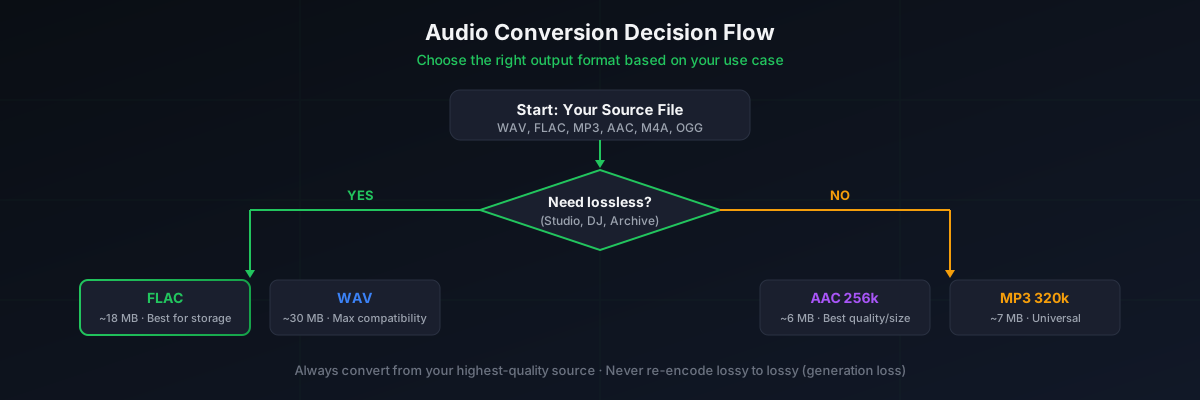
This is the golden rule of audio conversion: you can go from lossless to lossy without quality loss, but never from lossy to lossless. Converting MP3 to FLAC gives you a larger file with the exact same audio quality as the MP3. Always start from the highest-quality source you have.
WAV vs FLAC vs MP3 vs AAC: What's the Difference?
Let's look at each format in detail.
WAV (Waveform Audio File Format)
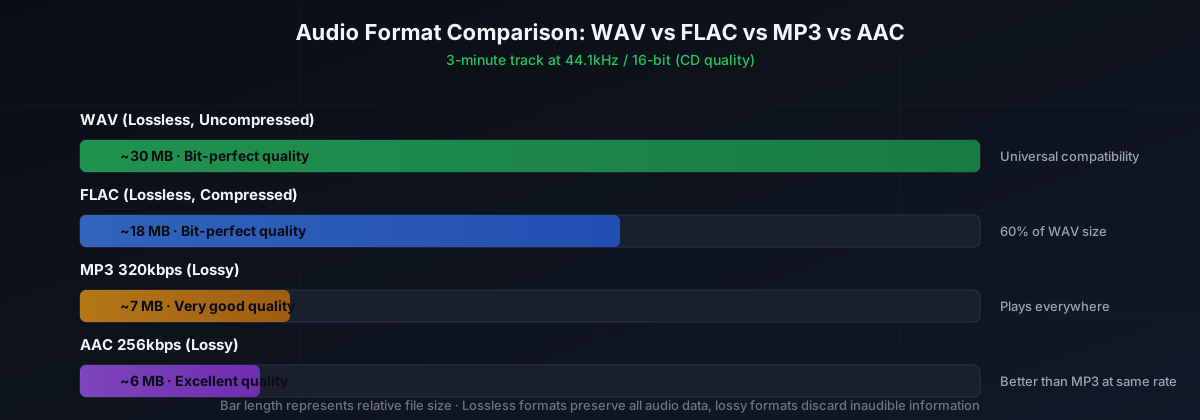
WAV is the rawest audio format most people will encounter. Developed by Microsoft and IBM in 1991, it stores uncompressed PCM audio with no data reduction whatsoever. A 3-minute WAV file at 44.1kHz/16-bit (CD quality) is about 30MB. At 96kHz/24-bit (studio quality), that same 3 minutes balloons to 100MB.
WAV is universal — every DAW, DJ software, and media player supports it. It's the format you want when you're working in the studio and need maximum fidelity with zero processing overhead. The downside is storage. A DJ library of 5,000 WAV files will eat through 150GB of disk space fast.
FLAC (Free Lossless Audio Codec)
FLAC is lossless compression for audio, the same way ZIP works for regular files. It shrinks audio to 50-60% of its WAV size with zero quality loss. That same 3-minute track that's 30MB as a WAV becomes about 18MB as a FLAC file, and when you play it back, the audio is bit-for-bit identical to the original WAV.
FLAC is open-source and royalty-free, maintained by the Xiph.Org Foundation. It's supported by most modern DJ software (Rekordbox, Serato, Traktor) and DAWs, though some older hardware players don't read it. For archiving music and building DJ libraries, FLAC hits the sweet spot between quality and storage.
MP3 (MPEG-1 Audio Layer III)
MP3 is the format that made digital music distribution possible. Developed in the early 1990s and standardized by the Fraunhofer Society, MP3 uses lossy compression to reduce file sizes dramatically. A 320kbps MP3 of that same 3-minute track is about 7MB — less than a quarter of the WAV size.
MP3 is universally supported. Every device, every software, every platform reads MP3. That universality is its killer feature. The downside is that MP3 is an older codec and doesn't achieve the same quality-to-size ratio as newer formats like AAC. At lower bitrates (128kbps and below), MP3 introduces audible artifacts — a swishy, underwater sound in cymbals and reverb tails.
AAC (Advanced Audio Coding)
AAC is the successor to MP3, standardized as part of the MPEG-2 and MPEG-4 specifications. It delivers better sound quality than MP3 at the same bitrate. A 256kbps AAC file generally sounds as good as or better than a 320kbps MP3, while being smaller.
AAC is the default format for Apple Music, iTunes Store, and most streaming platforms. If you've bought music from iTunes or streamed from Apple Music, you've been listening to AAC. It's also what most phones default to when recording audio. The limitation is that some older DJ software and hardware don't fully support AAC, though this has improved significantly.
Which Audio Format Should You Choose?
The right format depends on what you're doing with the audio. Here's a practical comparison:
| Format | Type | 3-min File Size | Quality | Best For |
|---|---|---|---|---|
| WAV | Lossless (uncompressed) | ~30 MB | Maximum (bit-perfect) | Studio production, mastering, DJ performance |
| FLAC | Lossless (compressed) | ~18 MB | Maximum (bit-perfect) | Archiving, DJ libraries, high-quality listening |
| MP3 (320kbps) | Lossy | ~7 MB | Very good | Universal compatibility, portable devices, streaming |
| AAC (256kbps) | Lossy | ~6 MB | Excellent (better than MP3 at same bitrate) | Apple ecosystem, streaming, modern devices |
For DJs specifically, the choice usually comes down to WAV or FLAC for performance and MP3 for portability. If you're preparing tracks for a DJ set, check out our complete guide to preparing tracks for a DJ set for the full workflow.
How to Convert Audio Files Without Losing Quality
Audio conversion is a one-way street for lossy formats. Here's how to navigate it without degrading your files.
Rule 1: Always convert from the highest-quality source. If you have a WAV or FLAC file, convert from that. If your only source is a 128kbps MP3, converting it to FLAC won't make it sound better — it'll just take up more space.
Rule 2: Avoid re-encoding lossy files. Converting MP3 to AAC or AAC to MP3 runs the audio through a second lossy compression pass. Each generation loses more data. This is called generation loss, and it's the audio equivalent of making a photocopy of a photocopy.
Rule 3: Use high bitrates for lossy output. If you must convert to a lossy format, use 320kbps for MP3 or 256kbps for AAC. These bitrates are considered transparent — meaning most people can't distinguish them from the original in blind listening tests.
Rule 4: Match sample rate and bit depth. When converting between lossless formats, keep the sample rate (44.1kHz, 48kHz, 96kHz) and bit depth (16-bit, 24-bit) the same. Resampling introduces its own quality changes.
How to Convert Audio Files with GreenGo
GreenGo includes a built-in audio converter that handles WAV, FLAC, MP3, AAC, M4A, and OGG. The advantage is that conversion happens locally on your desktop — no file uploads, no internet connection needed, and your files never leave your machine.
Here's how to convert a batch of audio files:
- Open GreenGo and navigate to the Converter tab. You'll see a drag-and-drop zone in the center of the screen.
- Drag your files (or a folder) into the converter. GreenGo accepts WAV, FLAC, MP3, AAC, M4A, and OGG files. You can mix formats in the same batch.
- Select your output format from the dropdown. Choose WAV or FLAC for lossless output, MP3 or AAC for compressed files.
- Set the bitrate if you chose a lossy format. For MP3, 320kbps is the best quality. For AAC, 256kbps is the sweet spot.
- Choose your output folder. GreenGo can save converted files to the same directory or a new one. It preserves your folder structure if you're converting a nested library.
- Click Convert. GreenGo processes files in parallel using your CPU cores. A batch of 50 tracks typically takes under 2 minutes.
After conversion, GreenGo automatically writes ID3 metadata tags (BPM, key, artist, title) to the output files. If you're converting for a DJ library, this means your tracks arrive in Rekordbox or Serato already analyzed and tagged. For more on metadata, see our guide on why every DJ needs ID3 metadata tagged correctly.
GreenGo is available for Windows and macOS. You can try the converter feature free for 7 days (no credit card required), then it's $5.99/month with the ability to cancel anytime.
Best Free Audio Converter Tools in 2026
Beyond GreenGo, there are several solid audio file converter free options. Here's how they compare:
| Tool | Formats | Batch | Platform | Best Feature |
|---|---|---|---|---|
| GreenGo | WAV, FLAC, MP3, AAC, M4A, OGG | Yes | Win, macOS | Auto-tags BPM, key, metadata after conversion |
| foobar2000 | 30+ formats | Yes | Win, macOS, mobile | Highly customizable, supports plugins |
| Audacity | WAV, FLAC, MP3, AAC (via FFmpeg) | Yes | Win, macOS, Linux | Free and open-source, includes editing |
| VLC Media Player | Most formats | Limited | All platforms | Already installed on many systems |
| Online Converters | Varies | No | Web browser | No installation needed |
Online converters work in a pinch, but they have real downsides: file size limits, upload/download times, privacy concerns, and the fact that they disappear without warning. We covered this problem in detail in our post about why web converter sites keep failing. For anything beyond a single quick conversion, a desktop tool is more reliable and faster.
Tips for Clean Audio Conversion
- Keep a lossless master. Always archive your original WAV or FLAC files. You can always create an MP3 from a FLAC, but you can't create a FLAC from an MP3 and get the lost quality back.
- Use 320kbps for MP3. If you must use MP3, 320kbps is the highest standard bitrate. It's transparent for virtually all listeners and universally compatible.
- Prefer AAC over MP3 for new files. AAC achieves better quality at the same or lower bitrate. If your target platform supports AAC (and most do in 2026), there's no reason to choose MP3.
- Check sample rates. CDs use 44.1kHz. Video audio typically uses 48kHz. Converting between these without a quality resampler introduces artifacts. Most modern converters handle this automatically, but it's worth checking the output settings.
- Don't normalize during conversion. Some converters apply volume normalization by default. If you want to preserve the original dynamic range, turn this off. Normalize separately if needed, as a deliberate step.
- Verify after conversion. Listen to the first few seconds of converted files, especially if you're batch-converting. A wrong setting can silently ruin an entire batch.
- Tag your files after conversion. Converted files often lose their metadata. Use a tool that preserves or re-writes ID3 tags so your DJ software can read BPM, key, and artist info.
FAQ
What is the best audio format for DJing?
WAV and FLAC are the best formats for DJing because they're lossless, meaning no audio data is lost. FLAC is preferred because it's about 40% smaller than WAV while offering identical sound quality. Most modern DJ software, including Rekordbox, Serato, and Traktor, fully supports FLAC.
Can I convert FLAC to MP3 without losing quality?
You can convert FLAC to MP3, but some quality loss is unavoidable because MP3 is a lossy format. However, converting from FLAC to 320kbps MP3 produces a file that sounds identical to the original for nearly all listeners. The key is to always convert from your highest-quality source file.
Is WAV better than FLAC?
WAV and FLAC contain identical audio data. The difference is that WAV is uncompressed (larger files) while FLAC uses lossless compression (smaller files). When you play a FLAC file, it decompresses to the exact same audio as the WAV. FLAC is the better choice for storage; WAV is better when you need maximum compatibility with older hardware.
What is the best free audio converter?
For basic conversion, Audacity and foobar2000 are excellent free options. For DJs and producers who need conversion plus automatic BPM detection, key analysis, and metadata tagging, GreenGo combines all of these in one desktop app. GreenGo offers a 7-day free trial (no credit card required) so you can test the full workflow before committing.
Does converting MP3 to WAV improve quality?
No. Converting MP3 to WAV does not improve audio quality. The data that MP3 discarded during compression is gone permanently. The resulting WAV file will be larger but contain the exact same audio information as the source MP3. Always convert from lossless sources (WAV or FLAC) when you need maximum quality.
What bitrate should I use for MP3?
320kbps is the highest standard MP3 bitrate and is considered transparent, meaning most people can't distinguish it from the original lossless source. If file size is critical, 256kbps is still very good. Avoid bitrates below 192kbps for music, as audible artifacts become noticeable, especially in cymbals, reverb tails, and quiet passages.
Picking the right audio format comes down to your use case: WAV or FLAC for quality, MP3 or AAC for portability. The format you store your music in affects everything from disk space to how your DJ software reads it. GreenGo handles conversion between all four formats locally, with automatic metadata tagging built in, so your converted files arrive ready to play. Download GreenGo and try the converter free for 7 days.