The Converter tab is where tracks go from 'I found this on YouTube' to 'it's in my DJ library.' It does two things: downloads audio from URLs (YouTube and other platforms) and converts local audio files between formats. Both can happen in the same queue, with batch processing and automatic analysis built in.
This guide covers everything the Converter tab can do, from a single YouTube download to batch-converting a folder of FLAC files to MP3.
⚠ Use Responsibly — Copyright Matters
The Converter is designed for downloading and converting your own content, copyright-free material, or content you have permission to use. GreenGo does not support or encourage piracy or the unauthorized downloading of copyrighted material. With power comes responsibility — please respect creators' rights and applicable copyright laws in your jurisdiction.
What the Converter Tab Does
The Converter handles two types of jobs:
- URL downloads: Paste a YouTube URL (or up to 30 at once) and download the audio as MP3, WAV, FLAC, or M4A.
- Local file conversion: Drag in audio files (or use the file picker) and convert them between formats. Supports MP3, WAV, AAC, FLAC, M4A, OGG, WMA, OPUS, WEBM, and MP4 as input.
Note: Only download content you own, copyright-free material, or content you have permission to use. GreenGo does not support piracy. With power comes responsibility.
Both types can be mixed in the same queue. The converter processes items sequentially and shows real-time status for each.
For a broader guide to audio formats, see our audio format converter guide.
The Interface at a Glance
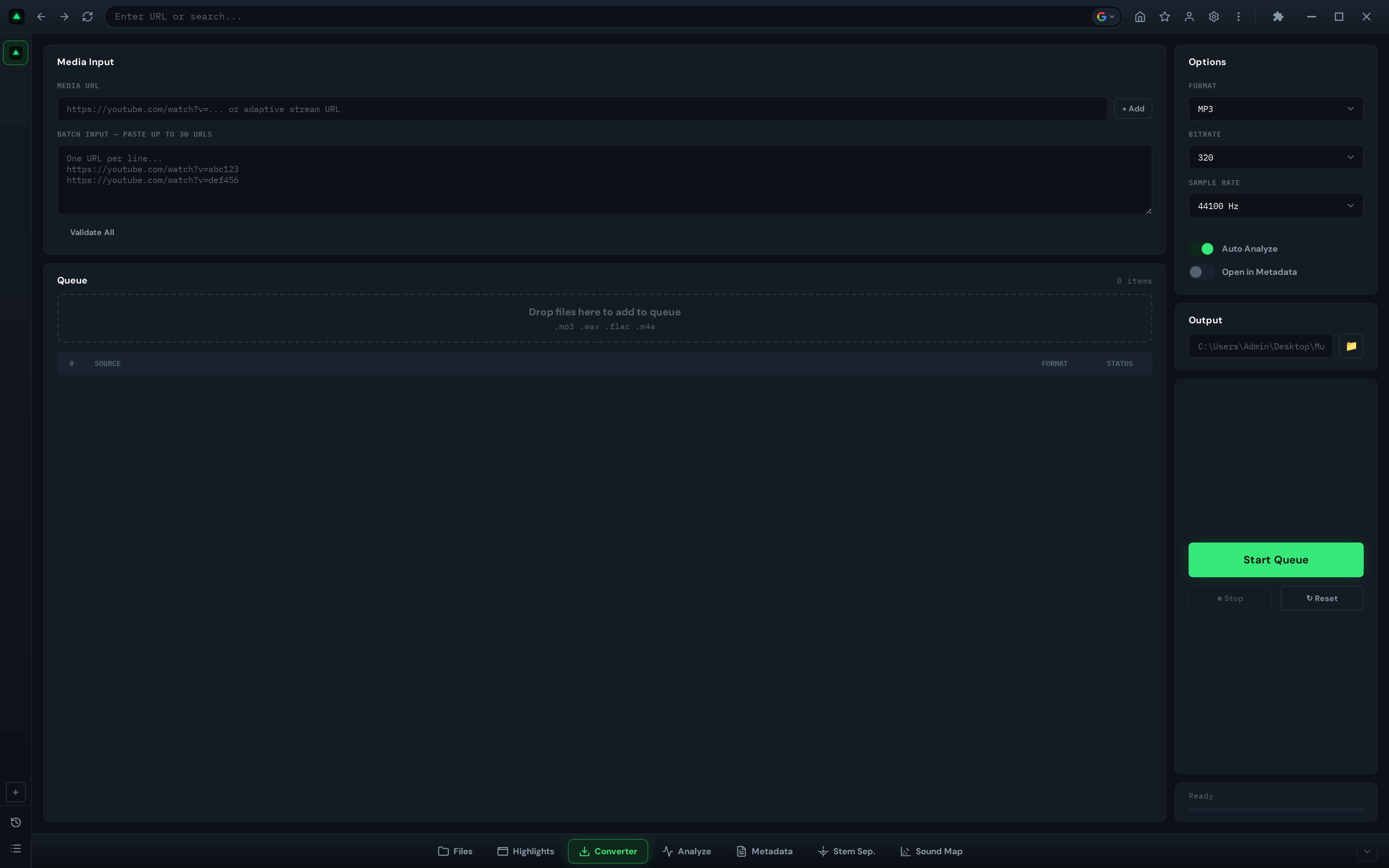
Click Converter in the bottom toolbar. The interface has two columns:
- Left column: URL input, batch URL textarea, queue table with drag-and-drop zone
- Right column: Format/bitrate/sample rate dropdowns, output folder, Start/Stop/Reset buttons, progress bar
Adding Items to the Queue
There are four ways to add items to the conversion queue:
Method 1: Single URL
Type or paste a YouTube URL into the single URL input field at the top left. Click '+ Add'. The URL is validated and added to the queue table with its source format and 'Queued' status.
Note: Only download content you own, copyright-free material, or content you have permission to use. GreenGo does not support piracy. With power comes responsibility.
Method 2: Batch URLs
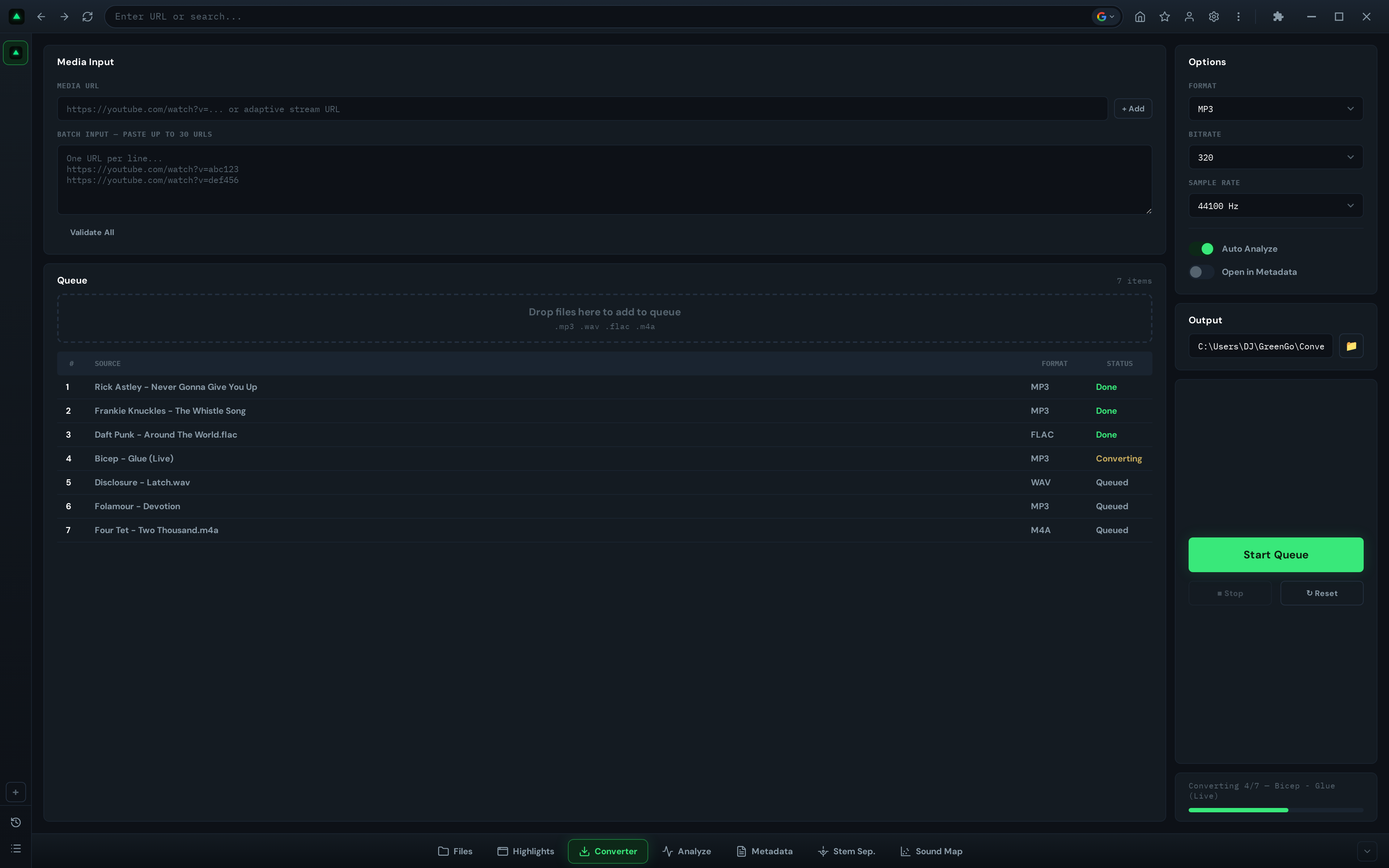
Paste up to 30 URLs into the batch textarea (one per line). Click 'Validate All'. GreenGo parses each URL, validates it, and adds valid ones to the queue. The URL count display shows how many were added.
Method 3: Drag & Drop Local Files
Drag audio files from your file manager onto the drop zone in the queue area. Files are added with their source format detected automatically.
Method 4: File Picker
Click the drop zone to open a file picker. Select one or more audio files. They're added to the queue.
Supported input formats: MP3, WAV, AAC, FLAC, M4A, OGG, WMA, OPUS, WEBM, MP4
The queue table shows each item's number, source (filename or URL), format, and status (Queued, Converting, Downloading, Done, Error, Limit Reached).
Choosing a Format: MP3, WAV, FLAC, or M4A?
The format dropdown in the options panel lets you choose the output format. Here's when to pick each:
| Format | Type | Best For | File Size | Compatibility |
|---|---|---|---|---|
| MP3 | Lossy | DJ libraries, general use | Small | Universal |
| WAV | Lossless (uncompressed) | Production, mastering, maximum quality | Large | Universal |
| FLAC | Lossless (compressed) | Archiving, high-quality listening | Medium | Good (most modern players) |
| M4A | Lossy | Apple ecosystem, iTunes | Small | Good (Apple devices) |
Recommendation for DJs: MP3 at 320 kbps is the standard for DJ libraries. It's universally compatible with Rekordbox, Serato, Traktor, and VirtualDJ, and the quality is indistinguishable from lossless for most playback scenarios. Use WAV only if you're playing in a high-end sound system where you need maximum fidelity.
For more on choosing formats, see our audio format guide.
Bitrate and Sample Rate Explained
Bitrate
The bitrate dropdown controls the audio quality for lossy formats (MP3, M4A, OGG). Higher bitrate = better quality = larger file:
- 320 kbps — Highest quality, indistinguishable from CD for most listeners
- 256 kbps — High quality, good balance of size and fidelity
- 192 kbps — Medium quality, noticeable difference on good speakers
- 128 kbps — Low quality, smallest file, only for previews or low-storage situations
For DJ use, always use 320 kbps. Lower bitrates can cause audible artifacts on a club sound system.
Note: Bitrate doesn't apply to WAV (uncompressed) or FLAC (lossless compression). These formats preserve the full audio quality regardless of the bitrate setting.
Sample Rate
The sample rate dropdown controls how many audio samples per second are stored:
- 44100 Hz — CD quality, standard for music
- 48000 Hz — Professional video standard
- 96000 Hz — High-resolution audio, for production/mastering
For DJ libraries, 44100 Hz is the standard. Higher sample rates don't improve perceived quality for playback and increase file size.
Starting the Conversion
Once your queue is loaded and options are set:
- Set the output folder (click Browse to pick a destination, or leave it to use the source file's location for local files)
- Click Start Queue
- The status bar shows 'Processed X/Y' as items complete
- The progress bar shows overall completion
- Each queue item updates in real-time: Queued → Downloading/Converting → Done or Error
- When finished, a toast notification shows: 'Batch finished: X ok, Y failed'
Output naming: Files are named based on the source: {original_name}.{format}. If a file with the same name already exists in the output folder, GreenGo appends _1, _2, etc. to avoid overwriting.
Stop button: Click Stop to halt the queue. Items currently processing will complete, but no new items will start.
Reset button: Clears the queue and resets all options to defaults.
Auto-Analyze and Auto-Tag
The Converter has two integration checkboxes that connect it to the rest of the app:
Auto Analyze (checked by default)
When enabled, each downloaded/converted track is automatically sent to the Analyze tab for BPM, key, and energy detection. This means by the time your download finishes, you already know the BPM and key of the track.
Open in Metadata
When enabled, converted tracks are opened in the Metadata tab for tagging. You can fix the title, artist, album, and add cover art immediately after conversion.
With both options enabled, the full pipeline is:
- Paste YouTube URL → click Start Queue
- Track downloads as MP3 320kbps
- BPM, key, and energy are detected automatically
- Track opens in Metadata tab for review/editing
- You fix the title and artist, click Save All
- Track is ready for import into Rekordbox/Serato/Traktor
This is the fastest way to go from discovery to DJ-ready. For the full workflow, see our complete toolbar guide.
Downloading from Highlights
If you're using the Highlights tab for music discovery, you can send any video directly to the Converter:
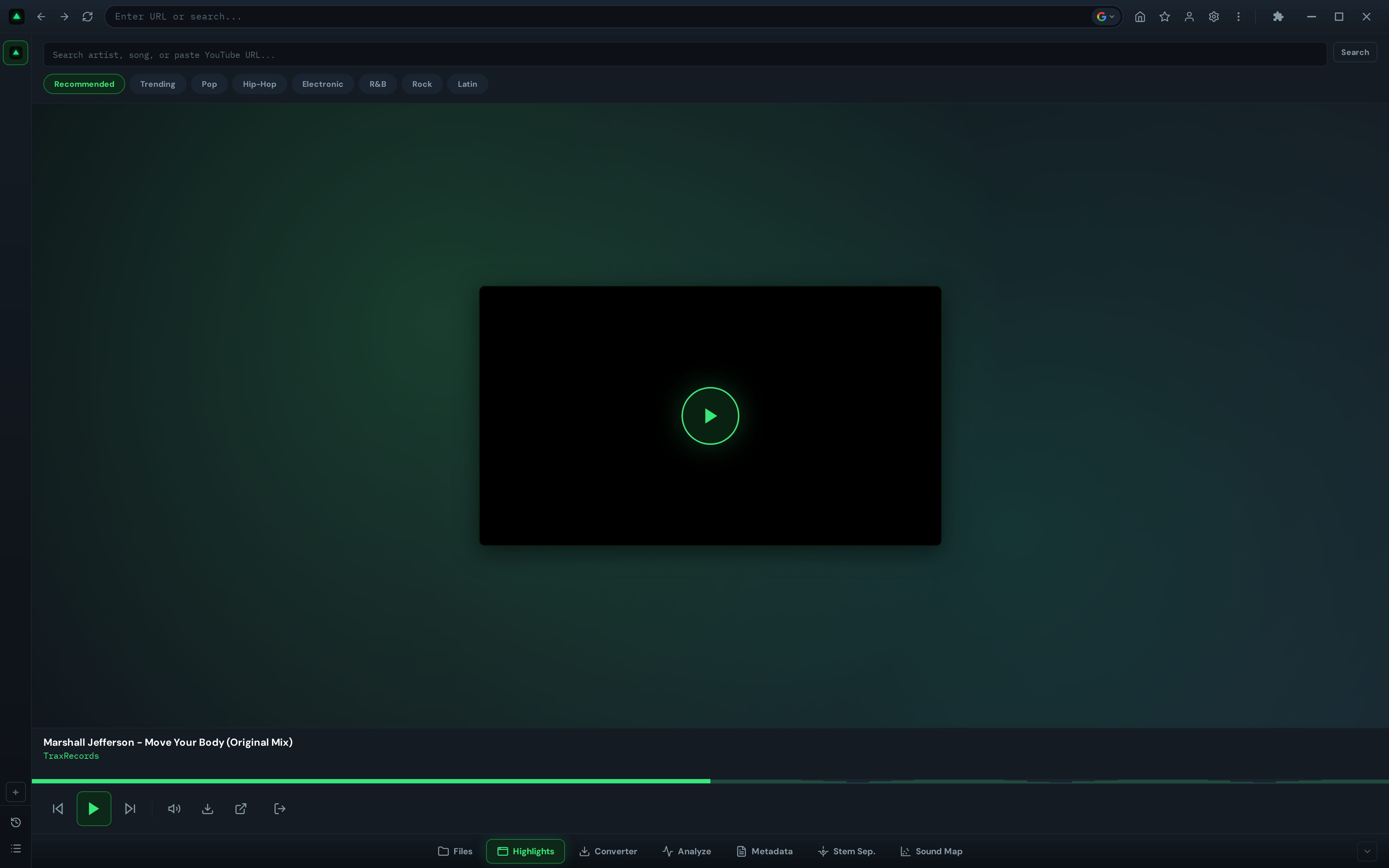
- In Highlights, find a track you want to keep
- Click the Download button (down arrow icon) in the playback controls
- The video's YouTube URL is added to the Converter queue
- Switch to the Converter tab to configure format and start the download
FFmpeg: The Engine Behind It
The Converter uses FFmpeg, the industry-standard audio/video processing tool, for all format conversions. Here's what happens behind the scenes:
- Auto-download: If FFmpeg isn't installed, GreenGo downloads it automatically on first use (from gyan.dev, ~80MB). You don't need to install anything manually.
- Search order: GreenGo looks for FFmpeg in three places: bundled with the app, in LOCALAPPDATA/GreenGo/bin, or in the system PATH.
- Format-specific encoding:
- MP3 uses the LAME encoder (
libmp3lame) - M4A/AAC uses the AAC encoder
- FLAC uses the FLAC encoder (lossless)
- WAV uses PCM 16-bit (uncompressed)
- OGG uses the Vorbis encoder (
libvorbis)
- MP3 uses the LAME encoder (
- URL downloads use yt-dlp to extract audio from YouTube and other platforms, then FFmpeg for format conversion.
Frequently Asked Questions
Can I download from sites other than YouTube?
The Converter uses yt-dlp for URL downloads, which supports hundreds of platforms including YouTube, SoundCloud, Bandcamp, and many others. However, the UI is optimized for YouTube URLs. For other platforms, paste the direct URL and it should work if yt-dlp supports it.
What's the maximum batch size?
You can add up to 30 URLs at once via the batch textarea. For local files, there's no hard limit, but processing is sequential, so large batches take time.
Does conversion work offline?
Local file conversion works offline (uses FFmpeg, which is downloaded once and stored locally). URL downloads require an internet connection to fetch the audio from the source platform.
Why is my conversion showing 'Limit Reached'?
The free trial allows 30 conversions. When you hit the limit, the lock overlay appears with a 'Subscribe Now' button. Upgrade to the full version with a subscription for unlimited conversions.
What bitrate should I use for DJing?
Always use 320 kbps for DJ libraries. Lower bitrates can produce audible artifacts on club sound systems. If file size is a concern, 256 kbps is acceptable, but 320 is the standard.
Can I convert to OGG or OPUS?
The UI offers MP3, WAV, FLAC, and M4A as output formats. The backend supports OGG as well, but it's not exposed in the current UI. For OGG conversion, you can use FFmpeg directly from the command line.
Is it legal to download audio from YouTube?
Downloading audio from YouTube may violate YouTube's Terms of Service and copyright law, depending on the content and your jurisdiction. The Converter is intended for your own content, copyright-free material, or content you have explicit permission to download. GreenGo does not support piracy. With power comes responsibility — always respect copyright laws and creators' rights.