Quick Answer
Use exFAT if you play exclusively on 2020-or-newer hardware (CDJ-3000, XDJ-XZ, XDJ-RX3, OPUS-QUAD) — it removes the 4GB file-size ceiling and the 32GB practical volume ceiling that FAT32 imposes. Use FAT32 if any gig might put you on older hardware (CDJ-2000NXS2 or earlier, XDJ-1000) — it is the only file system every piece of standalone DJ hardware ever made can read. Never use NTFS, HFS+, or APFS for a drive that needs to go into a CDJ, XDJ, or Engine DJ standalone unit — none of them are natively supported by that hardware, only by the computer you formatted them on.
That is the one-paragraph version. The rest of this guide is the reference you come back to when you need the exact size limits, the compatibility matrix by brand, the formatting steps, and the fixes for a USB drive a CDJ suddenly refuses to read.
Why File System Choice Actually Matters
A file system is the invisible bookkeeping layer that decides how a drive stores, indexes, and retrieves files. DJs do not usually think about it until a CDJ throws up a blank track list at a gig, or a 4.2GB uncompressed WAV refuses to copy. Almost every one of those incidents traces back to one root cause: the USB drive's file system does not match what the DJ hardware or DJ software actually supports.
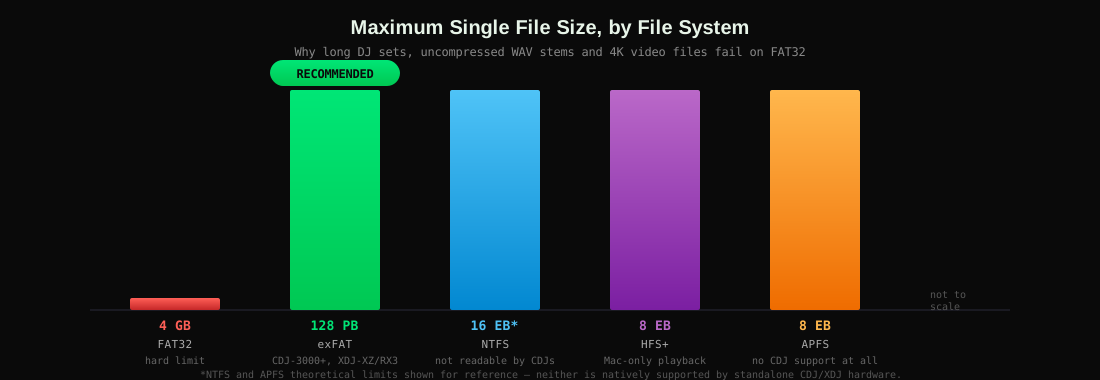
This matters more in 2026 than it did five years ago for two reasons. First, DJs increasingly carry lossless or high-resolution stems (see our stem separation tools comparison) that can individually exceed FAT32's 4GB file-size cap. Second, Pioneer, Denon, and Native Instruments have each shipped hardware generations with different exFAT support levels, so "just use exFAT" is not universally safe advice the way it is for a general-purpose flash drive.
FAT32 vs exFAT vs NTFS vs HFS+ vs APFS Compared
| File System | Max File Size | Max Volume Size | Windows | macOS | Standalone CDJ / DJ Hardware | Best For |
|---|---|---|---|---|---|---|
| FAT32 | 4GB − 1 byte | 2TB (practical) | Native | Native (read/write) | Universal — every CDJ/XDJ/Engine unit ever made | Maximum hardware compatibility |
| exFAT | 16EB (effectively unlimited) | 128PB (effectively unlimited) | Native | Native (read/write) | CDJ-3000, XDJ-XZ, XDJ-RX3, OPUS-QUAD, Engine OS 3+ only | Large libraries on modern hardware |
| NTFS | 16EB | 256TB | Native | Read-only without third-party driver | Not supported | Windows-only external drives, never DJ USB |
| HFS+ (Mac OS Extended) | 8EB | 8EB | Not supported | Native (legacy) | Not supported | Mac-only Time Machine or archive drives |
| APFS | 8EB | 8EB | Not supported | Native (current default) | Not supported | Internal Mac SSDs, never DJ USB |
Deep Dive: Each File System Explained
FAT32: the universal baseline
FAT32 dates back to Windows 95 OSR2 and is still the only file system guaranteed to work on every CDJ, XDJ, and standalone DJ controller Pioneer, Denon, and Numark have ever shipped. Its ceiling is a hard 4GB-minus-one-byte per file and a practically-enforced 32GB volume size from most formatting tools (the underlying spec allows larger, but Windows' own Format dialog blocks it). For most DJ libraries of compressed MP3 or AAC files this is a non-issue. It becomes a problem the moment you carry FLAC, WAV, or AIFF masters, or export multi-stem sets from a tool like GreenGo's STEM Separation, since a single uncompressed 6-stem export of a long track can approach or exceed 4GB.
exFAT: the modern default, with hardware caveats
exFAT was designed specifically to remove FAT32's size ceilings while staying lighter than NTFS. Every CDJ-3000, XDJ-XZ, XDJ-RX3, and OPUS-QUAD reads and writes it natively, as does Engine OS 3 and newer on Denon Prime hardware. The catch is generational: a CDJ-2000NXS2 or older Pioneer unit does not support exFAT at all, and will simply fail to see the drive. Before committing a whole library to exFAT, confirm every piece of hardware you might play on — including the house rig at a venue you have not played before — supports it.
NTFS: fine for backups, wrong for gigs
NTFS is Windows' native journaling file system, and journaling is exactly what makes it a poor fit for DJ USB drives: the extra metadata writes it performs to protect against corruption are unsupported by CDJ firmware entirely, and macOS can only read (not write) NTFS drives without installing a third-party driver like Paragon NTFS or Tuxera. Use NTFS for a Windows-only backup drive, never for a drive that needs to go into hardware.
HFS+ and APFS: Mac-only, hardware-incompatible
HFS+ (Mac OS Extended) and its successor APFS are Apple's native file systems. Windows cannot read either without third-party software, and no standalone CDJ, XDJ, or Engine DJ unit supports them. They exist in this comparison only because DJs on Mac sometimes format a fresh drive with whatever their operating system defaults to (usually APFS since macOS 10.13) and then wonder why a CDJ shows an empty drive. If you are Mac-only and never touch standalone hardware — running rekordbox or Serato entirely in software mode on a laptop — APFS is fine. The moment hardware enters the picture, reformat to FAT32 or exFAT. Apple documents the supported disk formats and Disk Utility behavior in its own Disk Utility support guide.
Which Format for Your Hardware and Software
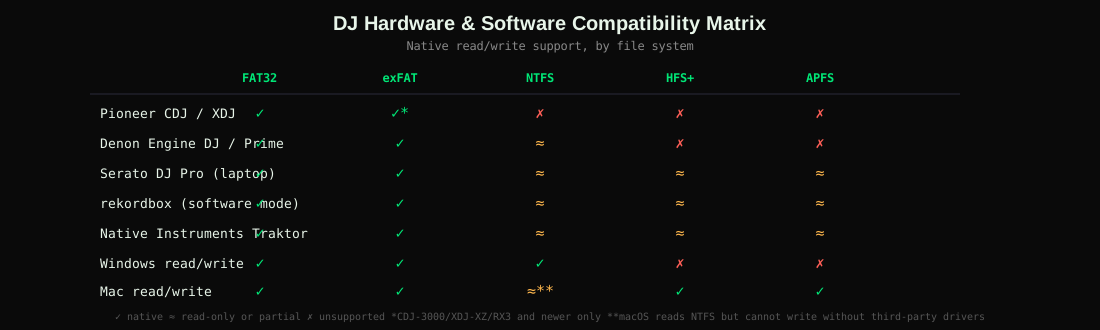
- Pioneer CDJ / XDJ (any generation you are unsure of): FAT32. It is the only format guaranteed across every unit.
- Pioneer CDJ-3000 / XDJ-XZ / XDJ-RX3 / OPUS-QUAD only: exFAT, to remove the 4GB and 32GB ceilings.
- Denon Engine DJ / Prime hardware on Engine OS 3+: exFAT is fully supported; FAT32 remains the safe fallback for older Prime units. See our DJ software comparison for a full Engine DJ feature breakdown.
- Serato DJ Pro, rekordbox, or Traktor in software mode (laptop only, no standalone hardware): any file system your OS supports natively works, since the software reads the drive directly. Read more in our GreenGo vs Mixed In Key library prep comparison.
- Switching between Rekordbox and Engine DJ, or Rekordbox and Serato, on the same drive: FAT32 or exFAT only — both platforms' hardware paths require one of these two.
If you already export from Rekordbox regularly, our Rekordbox USB Export guide covers the full Sync Manager workflow, hot cue export behavior, and why exports sometimes stall.
How to Format a USB Drive (Mac and Windows)
On macOS
- Open Disk Utility (Applications → Utilities).
- Select the physical USB drive (top-level entry, not the volume beneath it) in the sidebar.
- Click Erase.
- Set Format to MS-DOS (FAT) for FAT32, or ExFAT for exFAT.
- Set Scheme to Master Boot Record — not GUID Partition Map. CDJs will not mount a GUID-partitioned drive.
- Click Erase, then Done.
On Windows
- Open File Explorer, right-click the USB drive, select Format.
- For FAT32 on drives larger than 32GB, Windows' built-in Format dialog will not offer FAT32 as an option — use a third-party tool such as guiformat, or format via Command Prompt with
format /FS:FAT32, or use Disk Management with an exFAT target instead. - For exFAT, select exFAT directly from the File System dropdown — no size restriction applies.
- Leave Allocation Unit Size at Default.
- Click Start.
Corruption and Compatibility Troubleshooting
| Symptom | Likely Cause | Fix |
|---|---|---|
| CDJ shows "No Track" or an empty drive | Drive is NTFS, HFS+, or APFS | Reformat to FAT32 or exFAT with MBR partition scheme |
| exFAT drive not recognized on an older CDJ | Hardware predates exFAT support (pre-CDJ-3000 generation) | Reformat to FAT32 |
| Large files refuse to copy ("file too large for destination") | Drive is FAT32 and file exceeds 4GB | Reformat to exFAT (if hardware supports it) or split/re-encode the file |
| Drive appears corrupted after a gig, folder names garbled | Drive was unplugged while the CDJ or laptop was still writing to it | Always use "Eject" before unplugging; run First Aid (Mac) or chkdsk (Windows) to repair |
| Windows cannot format drive larger than 32GB as FAT32 | Windows' native Format tool artificially caps FAT32 at 32GB | Use a third-party FAT32 formatter, or switch to exFAT if your hardware supports it |
| Mac can read but not write to a drive | Drive is NTFS and no third-party driver is installed | Reformat to exFAT (cross-platform read/write) instead of relying on NTFS drivers |
For Windows partition and file system fundamentals, Microsoft's own exFAT technical overview is the authoritative reference. For background on the underlying specifications, see the FAT file system design documentation and exFAT overview on Wikipedia.
Before You Export: Prep Your Library First
Already decided on FAT32 or exFAT? The format is only half the job.
A correctly formatted drive still won't help if the files going onto it have missing BPM/key data, broken ID3 tags, or the wrong bit depth for the space you have. GreenGo is a local desktop app (Windows + macOS) that analyzes BPM, key, and energy, cleans up ID3 metadata, and converts between WAV, AIFF, FLAC, and MP3 — all before the files ever touch your USB drive, and all without uploading your library anywhere. That matters for the exact FAT32/exFAT decision above: converting a lossless stem set down from WAV to a smaller format can be the difference between a track fitting under FAT32's 4GB cap or needing exFAT hardware you don't have at the gig.
7-day free trial, no credit card required. Runs entirely on your machine — nothing leaves your computer.
Try GreenGo Free Read the Rekordbox Export GuideOnce your files are analyzed, tagged, and converted, use GreenGo's Audio Converter and Track Analysis tools to finish prepping the exact folder you plan to copy to your freshly formatted drive. For organizing that folder structure before export, see our guide on DJ library folder structure and naming.
FAQ
What format should I use for a DJ USB drive?
FAT32 for maximum compatibility across every CDJ and XDJ generation ever made. exFAT if you only play on 2020-or-newer hardware (CDJ-3000, OPUS-QUAD, XDJ-XZ, XDJ-RX3) and need more than 4GB per file or more than roughly 32GB total. Always use the Master Boot Record partition scheme, never GUID.
Is exFAT or FAT32 better for CDJs?
Neither is universally "better" — they solve different problems. FAT32 is better for compatibility since it works on every CDJ ever made. exFAT is better for capacity and large-file support on modern hardware. If you are unsure what you will play on, FAT32 is the safer default.
Can I use NTFS for a DJ USB drive?
No. No standalone CDJ, XDJ, or Engine DJ hardware reads NTFS. It is a Windows-native journaling file system intended for internal and backup drives, not DJ performance media.
What partition scheme should I use, MBR or GUID?
Master Boot Record (MBR). Standalone DJ hardware does not recognize GUID Partition Table (GPT) drives, which is macOS's default scheme for newer formats. Always select MBR explicitly in Disk Utility or Windows Disk Management.
Why does my USB drive keep getting corrupted on CDJs?
The most common cause is unplugging the drive while it is still being written to, either by the CDJ during track loading or by your computer during export. Always use "Eject" before disconnecting, and run a disk repair utility (First Aid on Mac, chkdsk on Windows) if a drive starts behaving erratically.
Do I need to reformat when switching from Rekordbox to Serato or Engine DJ?
Not for the file system itself — FAT32 and exFAT both work across Rekordbox, Serato, and Engine DJ. You will, however, need to re-export or re-analyze your library in each platform's own format, since track databases, hot cues, and beatgrids are stored differently by each application.