Quick Answer
Across Rekordbox, Serato, Traktor, Engine DJ and VirtualDJ, colored waveforms use the same convention: red/orange represents low frequencies (kick, bass, sub — roughly 20–250 Hz), green represents midrange (vocals, synths, snare — roughly 250 Hz–4 kHz), and blue/white represents high frequencies (hi-hats, cymbals, air — roughly 4–20 kHz). "RGB waveform" means all three bands are shown as a continuous color gradient; "3-band waveform" means the same three ranges are shown as flatter, more simplified color blocks. Both encode the same frequency information — RGB is just higher resolution.
That is the convention in one paragraph. The rest of this guide covers exactly how each platform implements it, how to actually use color to read a track before you mix, and what to do when the waveform doesn't match what you're hearing.
Why Waveform Colors Matter
A colored waveform is a frequency-analysis overlay, not decoration. Before a DJ ever presses play, the waveform already tells you where the bass drops out, where a breakdown starts, and whether a transition point has clashing bass energy with the track already playing. DJs who ignore waveform color and read only amplitude (the height of the waveform) miss this information entirely — two tracks can look identical in amplitude but have completely different frequency content at the same point.
The same low/mid/high split underlies standard 3-band EQ design on any DJ mixer, a convention documented in iZotope's guide to EQ frequency ranges. This matters more as libraries grow. If you're managing hundreds of tracks (see our guide on organizing a DJ library), being able to glance at a waveform and know where the energy sits saves real time compared to scrubbing through a track blind.
RGB vs 3-Band Waveforms Compared
| Aspect | 3-Band Waveform | RGB Waveform |
|---|---|---|
| How it works | Splits audio into 3 fixed frequency bands, colors each band a flat color | Maps a continuous frequency spectrum to a smooth color gradient |
| Visual style | Blockier, higher contrast, easier to read at a glance | Smoother, more detail, can look "busy" on dense tracks |
| Best for | Quick scanning, older hardware/lower-resolution screens | Detailed transition planning, identifying subtle frequency shifts |
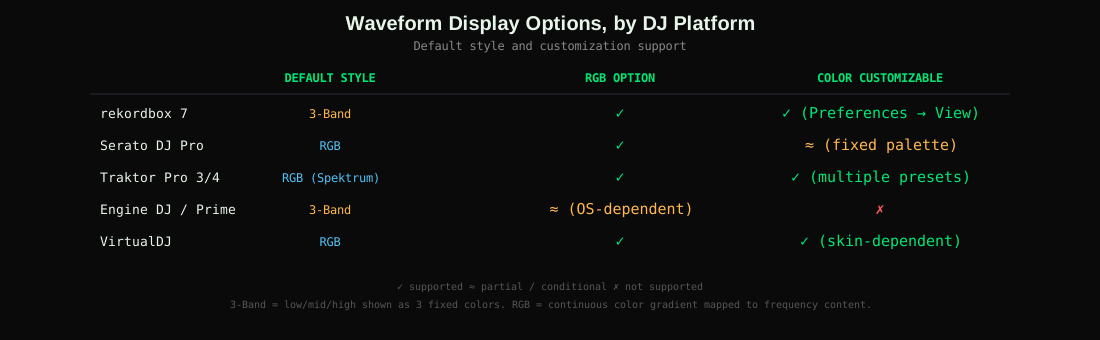
| Default on | rekordbox 7 (legacy default), Engine DJ / Prime hardware | Serato DJ Pro, Traktor Pro 3/4 (Spektrum), VirtualDJ |
| Performance cost | Lower — simpler to render | Slightly higher, negligible on modern hardware |
What Each Color Actually Represents
Regardless of platform, the underlying frequency-to-color convention is consistent because it mirrors how a 3-band EQ (low/mid/high) already splits a mix on a DJ mixer:
- Red / orange — low band (roughly 20–250 Hz): kick drums, bass lines, sub-bass. A track with a tall red band at the start usually opens with a strong kick or bassline already present. See audio frequency range definitions on Wikipedia for the underlying acoustics.
- Green — mid band (roughly 250 Hz–4 kHz): vocals, lead synths, snares, most melodic content. This is usually the tallest band on vocal-driven tracks.
- Blue / white — high band (roughly 4–20 kHz): hi-hats, cymbals, shakers, air and sheen. A track that goes blue-heavy in a section usually means the low end has been filtered out — a common build-up or breakdown technique.
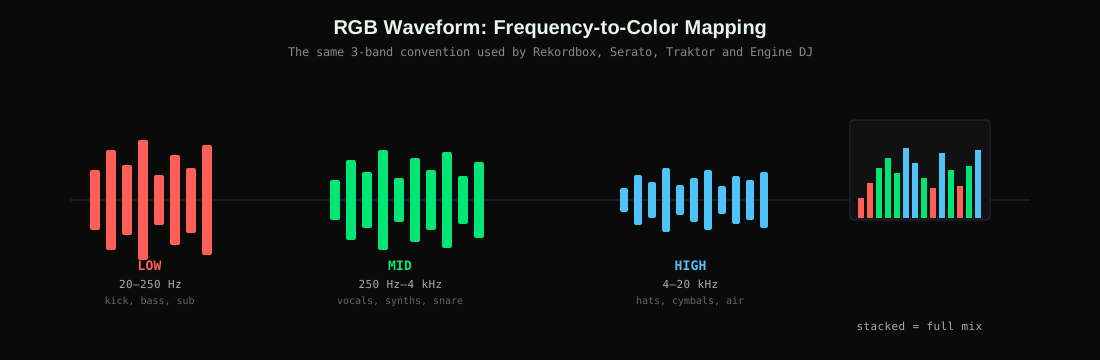
This is the same logic behind the low/mid/high split discussed in our DJ energy levels guide — a waveform's color balance is effectively a visual proxy for a track's energy profile at any given point.
Waveform Colors by Platform
rekordbox 7 (Pioneer CDJ / XDJ)
rekordbox defaults to a 3-band waveform in most installs, but supports switching to RGB waveform display in Preferences → View → Waveform Color. CDJ-3000 and newer hardware render RGB waveforms on the jog screen; older CDJs display the simplified 3-band version regardless of the software setting. Our Rekordbox USB Export guide covers what analysis data (including waveform detail) actually transfers to hardware.
Serato DJ Pro
Serato has used RGB "EQ colored waveforms" as its default since Serato DJ 1.7.5, with a fixed (non-customizable) red/green/blue palette, documented in Serato's own Main Waveform Display support article. Serato's waveform is generated during track analysis, the same pass that calculates BPM — see our BPM detection accuracy comparison for how that analysis differs across platforms.
Traktor Pro 3/4
Native Instruments calls its RGB waveform mode "Spektrum," with multiple selectable color presets (including colorblind-friendly options). Traktor also offers a simplified single-color waveform for DJs who prefer to read amplitude only.
Engine DJ / Denon Prime hardware
Support varies by Engine OS version and hardware generation; some Prime units render a 3-band waveform on-screen while the desktop Engine DJ software shows RGB. Check your specific firmware version if the two don't match.
VirtualDJ
RGB by default, with waveform color fully customizable through skin settings.
How to Read a Waveform While Mixing
- Spotting a breakdown: look for a section where red (bass) drops out almost completely while green/blue continue — that's a classic breakdown, and a strong point to bring in a new track's bassline without a clash.
- Spotting a drop or bass swap point: a sudden, tall red band after a section with little red is usually where the bass "drops" back in. Time your outgoing track's bass to fade before this point.
- Judging energy at a glance: a waveform that's tall and saturated across all three colors is a high-energy, full-frequency section. A thin, mostly-blue waveform usually signals an intro, outro, or filtered breakdown.
- Avoiding frequency clashes: when beatmatching two tracks, glance at both waveforms' red bands at the mix point. Two simultaneous tall red sections often means two competing basslines — a candidate for a bass EQ kill on one channel — a technique covered in more depth by MusicRadar's guide to EQing like a pro.
How to Change Waveform Colors
rekordbox
Preferences → View → Waveform Color → choose 3Band or RGB.
Serato DJ Pro
Setup → DJ Preferences → Waveform Colors — select from the built-in palette options (fixed set, no custom hex input).
Traktor Pro
Preferences → Track Decks → Waveform → select a Spektrum color preset or switch to single-color mode.
VirtualDJ
Options → Settings → Interface → Skin, or edit the active skin's waveform color values directly if using a customizable skin.
Troubleshooting: When the Waveform Lies
| Symptom | Likely Cause | Fix |
|---|---|---|
| Waveform doesn't match what's actually playing | Stale analysis data from an earlier edit of the file | Re-analyze the track; delete and re-import if the waveform still doesn't refresh |
| Waveform looks flat with no color variation | Track was never analyzed, or analysis failed silently | Force re-analysis; check the file isn't corrupted or DRM-protected |
| Colors look washed out or inverted | Display/monitor color profile, or a low-contrast skin/theme | Switch to a high-contrast waveform color preset; check monitor calibration |
| Waveform color differs between two copies of the same track | Different file formats (e.g. FLAC vs WAV) can produce slightly different analysis results | Standardize your library to one format per track using a converter, and re-analyze after converting |
Before You Trust the Waveform
A waveform only shows you what's already loaded and analyzed correctly.
Color reading a waveform is a skill, but it depends entirely on accurate underlying analysis — the same analysis that also drives BPM, key and energy detection. GreenGo is a local desktop app (Windows + macOS) that re-analyzes BPM, key and energy for your whole library before a gig, so the frequency data behind every waveform your DJ software renders is actually correct — not leftover from a bad import or a re-encoded file. Everything runs on your machine; nothing uploads anywhere.
7-day free trial, no credit card required.
Try GreenGo Free Read the DJ Energy Levels GuideFor background on how DJ software actually derives BPM and key from a waveform's underlying audio data, see our Rekordbox analysis accuracy comparison and BPM detection methods guide. If you're converting files between formats before importing, GreenGo's Audio Converter and Track Analysis tools keep waveform data consistent across your library.
FAQ
What do the colors on a DJ waveform mean?
Red/orange represents low frequencies (bass and kick, roughly 20–250 Hz), green represents midrange (vocals and synths, roughly 250 Hz–4 kHz), and blue/white represents high frequencies (hi-hats and cymbals, roughly 4–20 kHz). This convention is shared across rekordbox, Serato, Traktor, Engine DJ and VirtualDJ.
What's the difference between RGB and 3-band waveforms?
Both encode the same three frequency ranges. A 3-band waveform shows them as flatter, simplified color blocks. An RGB waveform shows the same information as a smoother, continuous color gradient with more visual detail. Neither is more "accurate" — RGB is just higher resolution.
Which waveform color setting is best for Rekordbox?
There's no universally best option — it's a readability preference. RGB gives more detail for spotting subtle frequency shifts; 3-band is easier to read at a glance, especially at small jog-screen sizes on CDJ hardware.
Why doesn't my waveform match what I'm hearing?
This almost always means the analysis data is stale or failed. Force a re-analysis of the track, and if the mismatch persists, remove and re-import the file — the audio file itself may have been edited or re-encoded after the original analysis ran.
Can I customize waveform colors in Serato?
Only within Serato's built-in preset options — there's no custom hex color input. Traktor and VirtualDJ offer more granular customization, including colorblind-friendly presets in Traktor.
Do waveform colors affect DJ software performance?
RGB waveforms are marginally more demanding to render than 3-band, but the difference is negligible on any computer or standalone unit made in the last several years. Analysis speed matters far more for workflow than rendering cost.