'DJ tags' means two different things, and GreenGo handles both halves differently: GreenGo's 6-stem separation removes a voice drop over an instrumental section by exporting the instrumental stem, and GreenGo's metadata write replaces the comment field and fills clean BPM, key, artist and title when it analyzes a track. A voice drop over the main vocal can't be removed cleanly even with GreenGo, so get a clean version from the label or DJ pool.
GreenGo's October 2026 review of Google's top 10 for 'how to remove dj tags from songs' found 7 of 10 results were Quora, YouTube, Facebook or Reddit posts — and half of those answers confuse the two problems, telling you to edit ID3 fields when the tag is actually in the audio. This guide separates them.
DJ Tags Means Two Different Things
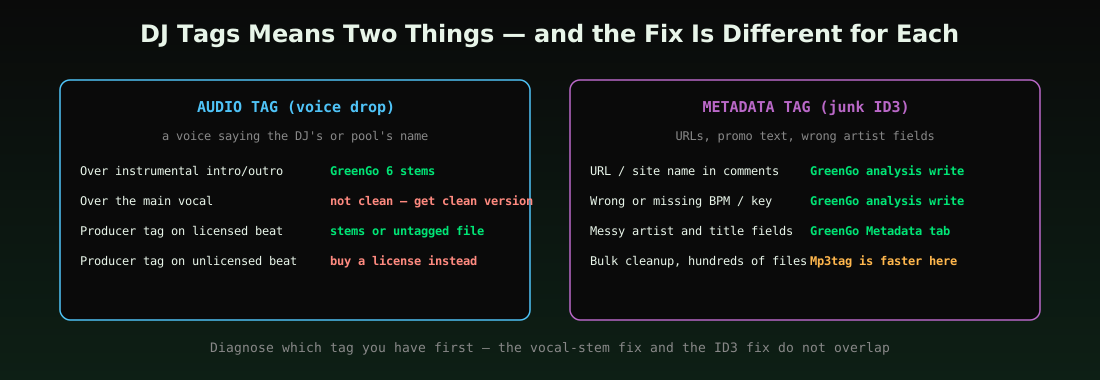
Before fixing anything, identify which tag you have. An audio tag (or voice drop) is baked into the waveform: a voice announcing the DJ's name, a DJ pool watermark, or a producer's signature sound. No metadata editor touches it, because it is sound, not text. A metadata tag is text inside the file's ID3 fields: a promo site's URL in the comment field, 'FREE DOWNLOAD' in the title, a uploader name where the artist should be.
The tell is simple. If you hear the tag, it is audio — you need stem separation or a clean version. If your DJ software just shows ugly text in the browser columns, it is metadata — you need a tag editor or an analysis write that replaces those fields.
Both problems come from the same place: distribution. DJ pools, promo lists and free-download sites mark their files so the source is traceable and the promo is credited. Some mark the audio, most mark the metadata, and many do both — which is why a single pool download can need both fixes before it is playable next to bought tracks in a set.
How Do I Remove a DJ Drop From a Song?
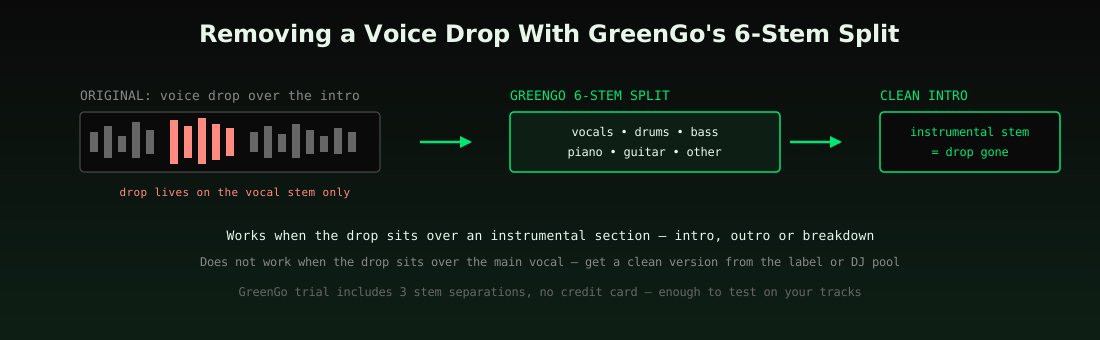
GreenGo removes a DJ drop that sits over an instrumental part by splitting the track into 6 stems, so the instrumental stem gives you a clean version of that section.
The workflow: run the track through GreenGo's stem separation (vocals, drums, bass, piano, guitar, other), take the instrumental stem — or recombine the non-vocal stems — and use it for the section where the drop lives. Pool intros and outros are the easy wins, since drops almost always sit over a beat-only passage. Our stem separation walkthrough shows the exact clicks.
For a more surgical version, bring the stems into any editor — even a free one like Audacity — and crossfade the instrumental stem in just for the drop seconds, keeping the full mix everywhere else. That gives you the original mix minus the drop, which sounds cleaner than swapping whole sections when the rest of the track's vocal should stay.
Be honest about the limits. A drop layered on top of the actual lead vocal is mixed into the same stem as the singer — separating it cleanly is not possible with any tool, including GreenGo. In that case the clean fix is getting the explicit or clean edit from your DJ pool, label or a store like Beatport. And a producer's tag on a beat you have not licensed is not a removal problem at all — buy the lease and receive the untagged file. The legal sources angle is covered in where DJs should get music.
How Do I Remove Junk Tags From MP3 Files?
GreenGo cleans junk tags two ways: GreenGo's Metadata tab rewrites title, artist, album, genre and year on export, and GreenGo's analysis write replaces the comment field and adds BPM and key.
What that looks like in practice: a promo MP3 arrives with the pool's URL in the comment field, 'www.somesite.com' glued to the artist name, and no BPM or key at all. Open it in GreenGo's Metadata tab to fix the visible text fields on export — the full field list is in our metadata editing guide. Then let GreenGo's analysis write BPM, key and a clean comment into the file, so the track lands in Rekordbox or Serato already sane.
For pure bulk text scrubbing — hundreds of files where you just want ' - Copy', promo URLs and junk prefixes stripped — Mp3tag is still the faster free tool, and it ranked well in our tag editor comparison. GreenGo's advantage is doing cleanup and analysis in one pass rather than as two separate jobs.
A quick warning before scrubbing: back up first, and do not delete fields your DJ software depends on. The comment field is fair game, but blanking cue-bearing or app-specific fields can cost you playlist data. When in doubt, edit a copy — GreenGo's metadata export writes to a new file rather than touching the original, which is the safe habit to copy into every workflow.
The Right Fix for Each Problem
| Problem | The fix | With GreenGo |
|---|---|---|
| Voice drop over intro/outro | Stem split, use instrumental stem | GreenGo 6-stem separation |
| Drop over the main vocal | Get clean version from pool/label | Not fixable cleanly by GreenGo |
| URL or promo text in comment field | Overwrite on tag write | GreenGo analysis write replaces it |
| Messy artist/title text | Edit fields, export clean copy | GreenGo Metadata tab |
| Missing BPM/key after cleanup | Analyze and write tags | GreenGo writes BPM + key fields |
| Producer tag on unlicensed beat | Buy the license | Not a GreenGo job |
Two rows above deserve repeating because they save you hours: drops over vocals are a licensing problem dressed as an editing problem, and text junk is cheap to fix only when you do not also need analysis. Knowing which row your file is on decides whether the fix takes 30 seconds or a purchase.
If your downloads folder mixes all of these — typical after a pool binge — process in the order the table implies: separate the audio problems from the text problems first, batch the text fixes, and handle drops one track at a time. Trying to fix audio and metadata in the same pass is how files end up half-clean: tags scrubbed but the drop still playing, or the drop gone but the comment field still shouting a URL.
The Verdict
Use Mp3tag over GreenGo if you only need free, manual scrubbing of many text fields; use GreenGo over Mp3tag if you also need to split out a voice drop or rewrite BPM and key while you clean.
Most pool-download cleanup is really both problems at once — a voice drop on the intro and junk in the comment field — which is where one tool that splits stems and writes tags beats two tools that each do half the job.
Set expectations on audio quality too. A stem-separated intro is club-ready for most genres, but on dense, reverb-heavy tracks you may hear artifacts where the vocal used to be. Test GreenGo's trial separations on your hardest file first — if the result passes on that track, it will pass on the easy ones in your library. Anything that survives the club test on your worst file earns a permanent place in the workflow.
One more scenario before the FAQ: the same 'remove the tag' question gets asked about YouTube rips and streaming captures, not just pool files. The rules are identical — audio drops need stems, text fields need a tag write — but files captured from low-quality sources carry a second problem no cleanup fixes, which is the compressed audio itself — a 128kbps rip stays a 128kbps rip no matter how clean its tags are, so weight the source before the cleanup.
Frequently Asked Questions
Can GreenGo remove a DJ drop for free?
GreenGo's 7-day free trial includes 3 stem separations with no credit card, enough to test drop removal on a few tracks.
How do I remove tags with Mp3tag?
Mp3tag is the better pick for scrubbing many text fields by hand (select files, clear the field, save), and GreenGo is the better pick when the cleanup also needs new BPM, key and stems.
Is it legal to remove a producer tag from a beat?
GreenGo doesn't support removing producer tags from beats you haven't licensed; buy the lease or exclusive and you'll get an untagged file.
Can GreenGo fix a tag over the chorus?
GreenGo's stems separate voice from instruments, but a drop printed on the same stem as the lead vocal comes out with it, so the reliable fix is a clean version from the label or DJ pool.
What ID3 fields does GreenGo write?
GreenGo writes BPM (TBPM), key (TKEY), Camelot (INITIALKEY), Open Key (OPENKEY), artist, title and comment on analysis, and the ID3 metadata guide explains why each field matters.