Scrolling through YouTube looking for new music is a time sink. You click a video, wait through the intro, skip around to find the good part, and by the time you know if you like it, you've spent 5 minutes on one track. The Highlights tab fixes this.
It takes YouTube music videos and starts each one at its most replayed moment, the part that listeners found most engaging. You get the hook first, not the intro. If not, one click and you're on the next track.
What Is the Highlights Tab?
Highlights is a horizontal video feed for music discovery. Each track is a YouTube music video that starts playing at its peak moment, the timestamp with the highest replay intensity according to YouTube's 'Most Replayed' heatmap data.
The key difference from regular YouTube browsing: you hear the best part of each track within seconds, not minutes. The feed auto-advances to the next video when the current one ends, so you can lean back and let the music come to you.
Getting Started
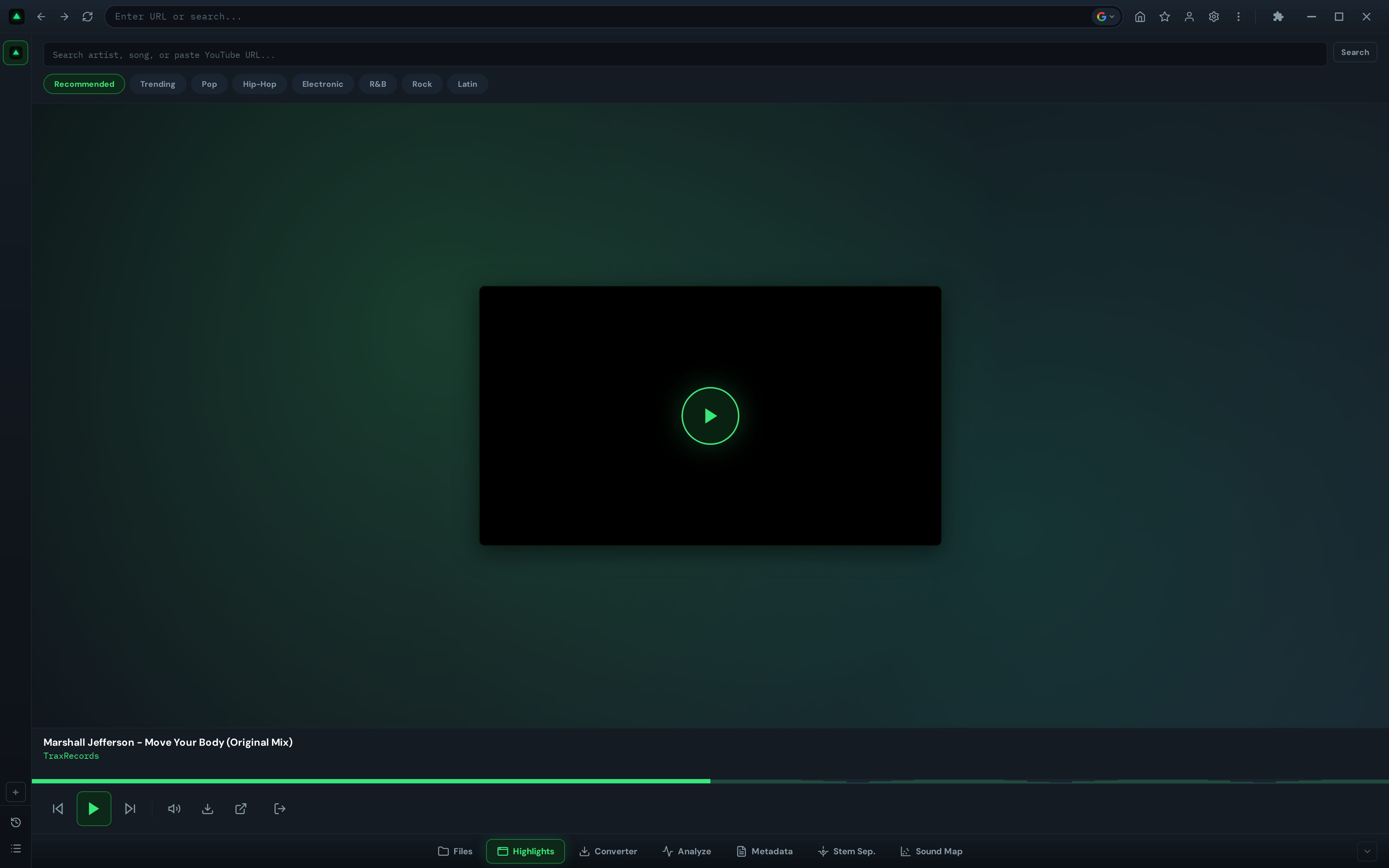
Click Highlights in the bottom toolbar. The tab opens and requires YouTube sign-in to load personalized recommendations. Once signed in, you'll get music recommendations based on your YouTube listening history.
The interface has three areas:
- Top bar: Search input and genre filter chips
- Center: Video player (full height)
- Bottom bar: Playback controls and queue counter
Browsing by Genre
The genre chips at the top let you filter the feed by music style:
- Recommended — Personalized feed (requires YouTube sign-in, shown by default)
- Trending — Currently popular music videos
- Pop — Pop music videos
- Hip-Hop — Hip-hop and rap
- Electronic — Electronic and dance music
- R&B — Rhythm and blues
- Rock — Rock and alternative
- Latin — Latin music
Click a chip to load that genre's feed. The first video starts playing immediately at its peak moment. The feed auto-advances when each video ends.

Content filtering: GreenGo automatically filters out non-music content. Playlists, compilations, 'best of' videos, non-stop mixes, gaming content, podcasts, and vlogs are excluded. Only videos between 1-10 minutes are included (typical song length).
Searching for Specific Tracks
If you're looking for something specific, use the search bar at the top:
- Type an artist name, song title, or paste a YouTube URL
- Press Enter or click the Search button
- Results populate the queue
- The first result plays automatically at its peak
Search uses YouTube's InnerTube API, which returns the same results you'd get searching on YouTube directly. Results are filtered to music content only.
How Peak Detection Works
This is what makes Highlights different from just watching YouTube. Here's what happens behind the scenes:
- When a video loads, GreenGo fetches the YouTube watch page HTML
- It extracts the 'heatMarkers' data, YouTube's internal heatmap showing which parts of the video get replayed most
- It identifies the timestamp with the highest replay intensity (skipping the first 5 seconds, since intros aren't real peaks)
- The video seeks to that timestamp and starts playing
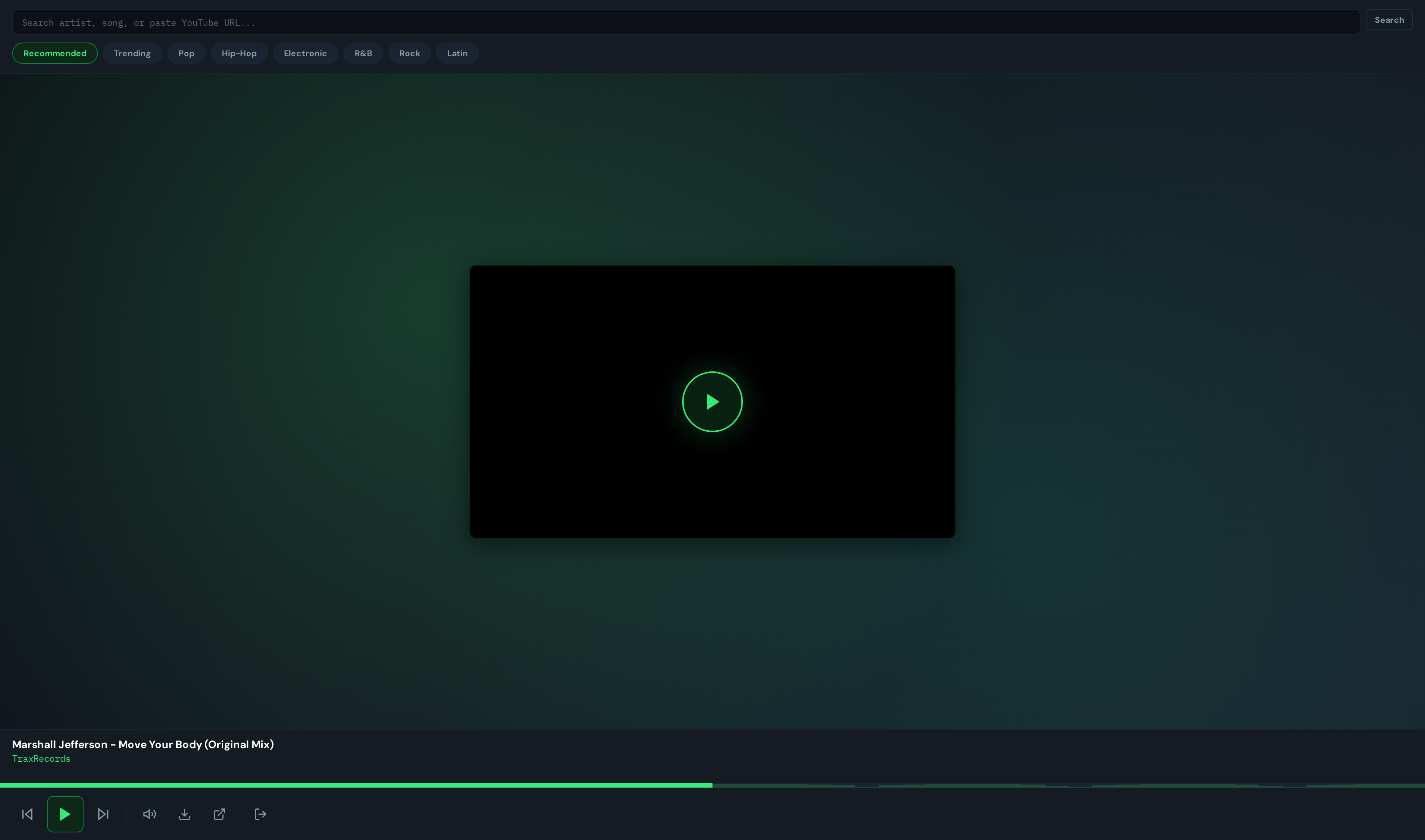
The progress bar shows the heatmap as vertical bars, so you can see the replay intensity across the entire track at a glance. Taller bars = more replays. The peak is where playback starts.
If no heatmap data is available (some videos don't have it), GreenGo defaults to starting at 45 seconds, which is typically where the main section of a song begins.
Playback Controls
The control bar at the bottom has these buttons:
| Button | Function |
|---|---|
| Previous | Go back to the previous video in the queue |
| Play/Pause | Toggle playback |
| Next | Skip to the next video |
| Mute/Unmute | Toggle audio |
| Open in YouTube | Open the video in a full browser tab (pauses the reel) |
| Logout | Sign out of YouTube (clears session) |
The queue counter shows your position (e.g., '3 / 12'). When the queue runs low (3 or fewer videos remaining), GreenGo automatically fetches more to keep the feed going.
Auto-advance: When a video ends (or reaches 0.6 seconds before the end), the next video loads automatically. The transition is instant because the next video is preloaded in a hidden webview.
Keyboard Shortcuts
Highlights supports keyboard shortcuts for faster navigation:
| Key | Action |
|---|---|
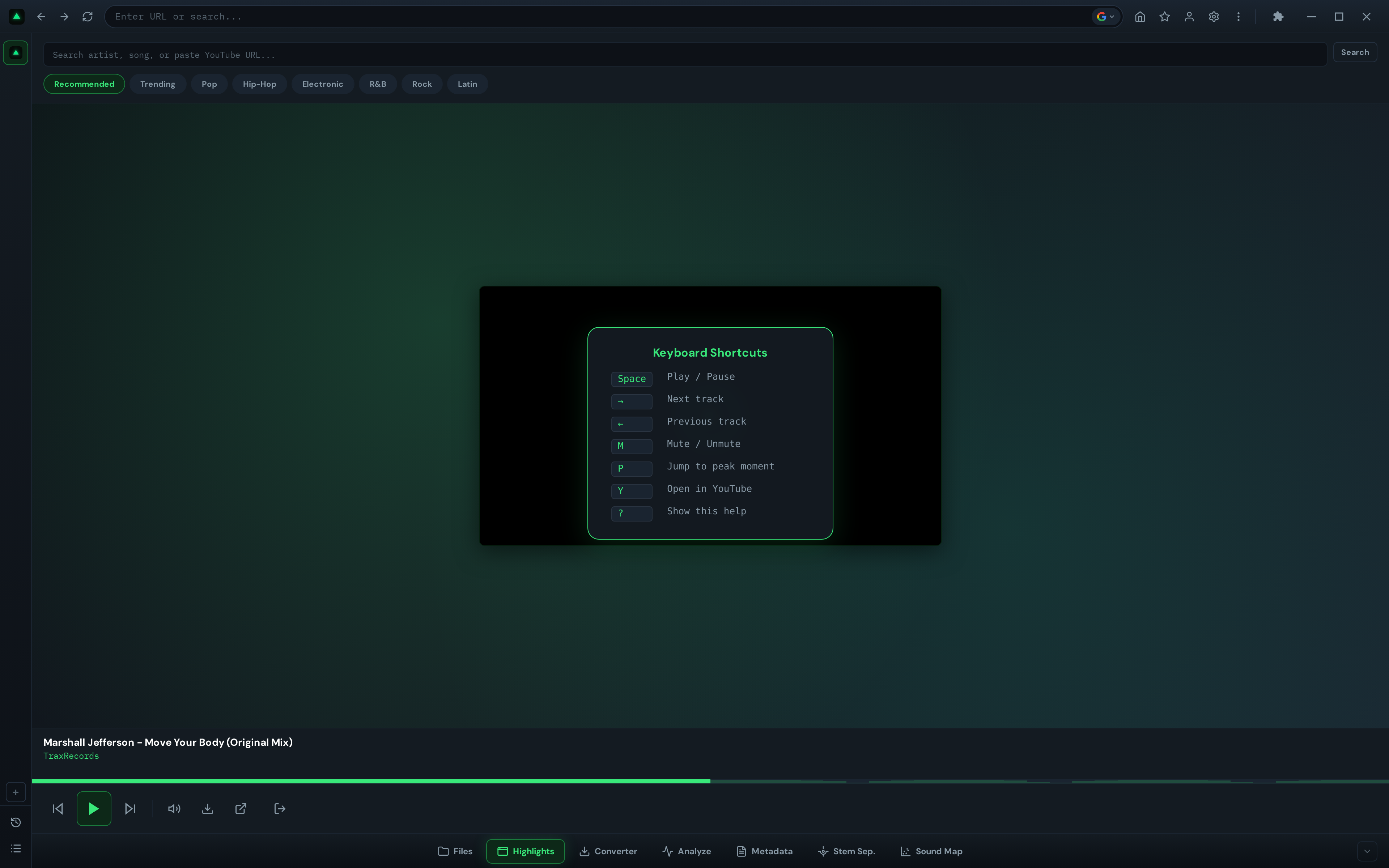
| Space | Play / Pause |
| Arrow Right | Next video |
| Arrow Left | Previous video |
| P | Jump to peak moment |
| M | Mute / Unmute |
YouTube Sign-In for Personalized Recommendations
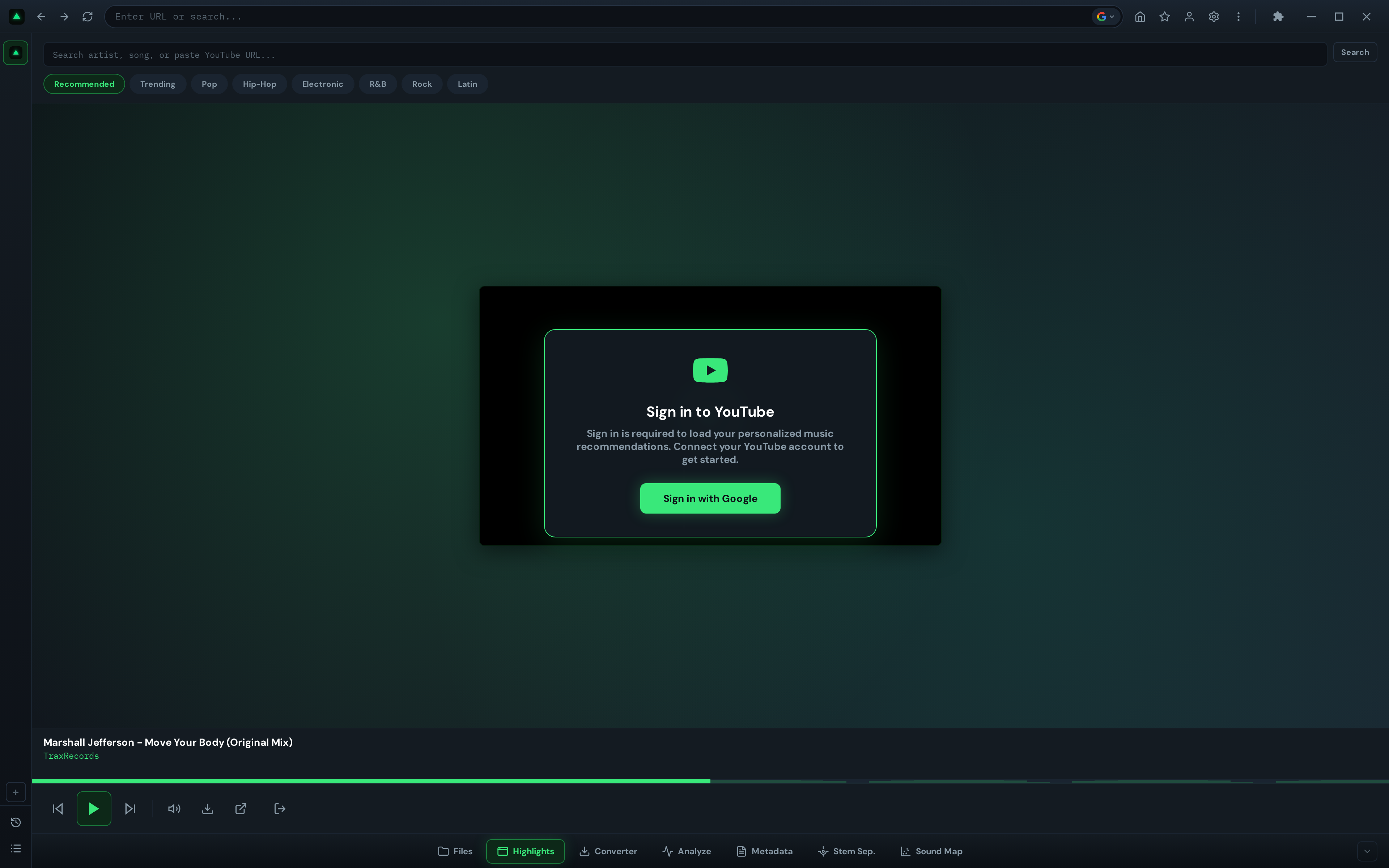
The 'Recommended' genre chip uses your YouTube history to generate personalized recommendations. Sign-in is required to access the feed:
- Click the 'Sign in to YouTube' prompt (or the Logout button area)
- A separate browser window opens for Google/YouTube authentication
- Sign in with your Google account
- Close the window when done
- The Highlights feed reloads with personalized recommendations
Privacy note: Your YouTube session is stored in a separate partition ('persist:greengo') within GreenGo. It doesn't share cookies with your main browser. Signing out (Logout button) clears all YouTube cookies from GreenGo.
Trending, Pop, Hip-Hop, Electronic, R&B, Rock, and Latin genre feeds use YouTube's public search API and are available without the personalized recommendations.
Frequently Asked Questions
Do I need a YouTube account to use Highlights?
Yes. Sign-in is required to load the recommendations feed. Once signed in, you get personalized music recommendations based on your YouTube listening history. You can also browse by genre using the filter chips (Trending, Pop, Hip-Hop, Electronic, R&B, Rock, Latin).
Can I create clips or edit videos in Highlights?
No. Highlights is a discovery and preview tool. It plays full YouTube videos starting at their peak moment. It doesn't create, edit, or export clips.
Why does a video start in the middle instead of at the beginning?
That's the peak detection feature. GreenGo identifies the most replayed moment in the video using YouTube's heatmap data and starts playback there. This lets you hear the best part first. Press 'P' to jump back to the peak at any time, or click anywhere on the progress bar to seek manually.
What types of videos are filtered out?
GreenGo filters out playlists, compilations, 'best of' videos, non-stop mixes, gaming content, podcasts, vlogs, and news. Only music videos between 1-10 minutes are included. The filter looks for music signals in the title (official music video, lyrics, feat., remix, cover, prod.) and channel name (VEVO, Artist - Topic channels).
Does Highlights work with ad blocking?
Yes. GreenGo includes an ad blocker that hides YouTube ads and overlays within the Highlights player. The ad blocker also skips video ads automatically, so you get uninterrupted music browsing.